This tutorial will show you how to use AppLocker to create a rule to allow or block Windows Installer (.msi, .msp, and .mst) files to run for all or specific users and groups in Windows 10 and Windows 11.
AppLocker is included in Local Security Policy (secpol.msc) to configure Application Control Policies in the Pro, Enterprise, and Education editions of Windows 10 and Windows 11. Local Security Policy is not available in the Home edition.
AppLocker defines Windows Installer rules to include only the .msi, .msp, and .mst file formats.
The purpose of this rule collection is to allow you to control the installation of files on client computers and servers through Group Policy or the Local Security Policy snap-in. The following table lists the default rules that are available for the Windows Installer rule collection.
Any Windows Installer file not allowed by the default rules below will automatically be blocked by default unless you create a new rule to allow it for a user or group.
If you want to block a Windows Installer file allowed by the default rules below, you will need to create a new rule to block (deny) it for a user or group.
Purpose | Name | User | Rule condition type |
|---|---|---|---|
| Allow members of the local Administrators group to run all Windows Installer files | (Default Rule) All Windows Installer files | BUILTIN\Administrators | Path: * |
| Allow all users to run Windows Installer files that are digitally signed | (Default Rule) All digitally signed Windows Installer files | Everyone | Publisher: * (all signed files) |
| Allow all users to run Windows Installer files that are located in the Windows Installer folder | (Default Rule) All Windows Installer files in %systemdrive%\Windows\Installer | Everyone | Path: %windir%\Installer* |
References:

What Is AppLocker
This article for the IT professional describes what AppLocker is.
learn.microsoft.com
Windows Installer rules in AppLocker
This article describes the file formats and available default rules for the Windows Installer rule collection.
learn.microsoft.com
You must be signed in as an administrator to use AppLocker.
AppLocker Windows Installer Rules are saved to the registry key below.
HKEY_LOCAL_MACHINE\SOFTWARE\Policies\Microsoft\Windows\SrpV2\Msi
EXAMPLE: "This installation package could not be opened. Contact the application vendor to verify that this is a valid Windows Installer package." message when open a blocked Windows Installer file
Here's How:
1 Open Local Security Policy (secpol.msc).
2 Expand open Application Control Policies in the left pane of the Local Security Policy window, click/tap on AppLocker, and click/tap on the Configure rule enforcement link on the right side. (see screenshot below)
3 In the Enforcement tab under Windows Installer rules, check Configured to Enforce rules, and click/tap on OK. (see screenshot below)
This setting is what enforces any "Windows Installer rules" you create.
4 Perform the steps below to add default rules for "Script Rules": (see screenshots below)
If this step is not done, AppLocker can block all Windows Installer files from running.
If you already have all the Windows Installer default rules like in the right screenshot below, then you can skip this step and go to step 5 instead.
- Expand open AppLocker.
- Right click on Windows Installer Rules.
- Click/tap on Create Default Rules.
5 Right click on Windows Installer Rules, and click/tap on Create New Rule. (see screenshot below)
6 Click/tap on Next. (see screenshot below)
7 Under Action, select (dot) Allow or Deny (block) for how you want this rule applied. (see screenshot below)
8 If you want to select a specific User or group instead of the default Everyone to apply this rule to, then follow the steps below:
If you want to allow or block script file(s) for the default Everyone, then go to step 9 instead.
A) Click/tap on Select. (see screenshot below)
B) Click/tap on the Advanced button. (see screenshot below)
C) Click/tap on the Find Now button. (see screenshot below)
D) Select a user or group you want to allow or block script file(s) for, and click/tap on OK. (see screenshot below)
E) Click/tap on OK. (see screenshot below)
9 Click/tap on Next. (see screenshot below)
10 Select (dot) Path, and click/tap on Next. (see screenshot below)
11 Do step 12 (file) or step 13 (folder/drive) below for the file or folder path you want to specify to allow or block script files.
12 Allow or Block Specific Windows Installer File
A) Click/tap on the Browse Files button. (see screenshot below)
B) Select the .msi, .msp, or .mst file type you want in the drop menu, navigate to and select the .msi, .msp, or .mst Windows Installer file, and click/tap on Open. (see screenshot below)
C) Click/tap on Create, and go to step 14. (see screenshot below)
13 Allow or Block All Windows Installer Files in a Specific Folder or Drive
A) Click/tap on the Browse Folders button. (see screenshot below)
B) Navigate to and select the folder or drive you want, and click/tap on OK. (see screenshot below)
C) Click/tap on Create, and go to step 14. (see screenshot below)
14 This new rule will now be added for "Windows Installer Rules". (see screenshots below)
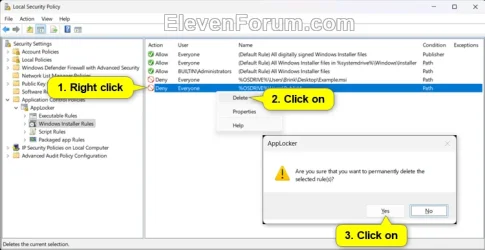
To undo and remove this rule, you can right click on the rule, click/tap on Delete, and click/tap on Yes to confirm.
That's it,
Shawn Brink
Related Tutorials
Last edited: