This tutorial will show you how to change the name of a network you are connected to in Windows 10 and Windows 11.
The first time you connect to a network, Windows will automatically give it a default name.
A wired Ethernet connection will usually have a generic name like Network by default.
A wireless Wi-Fi connection will usually use the SSID (ex: "Brink-WiFi") of the Wi-Fi network (ex: router) as its name by default.
You can change the default network name to any custom name you want instead.
You must be signed in as an administrator to change a network name.
Contents
- Option One: Change Network Name in Registry Editor
- Option Two: Change Network Name in Local Security Policy
EXAMPLE: Network name in "Network and Sharing Center", "Network Connections", and hover on network icon
1 Open Registry Editor (regedit.exe).
2 Navigate to the registry key location below in the left pane of Registry Editor, and expand open the Profiles key in the left pane. (see screenshot below)
HKEY_LOCAL_MACHINE\SOFTWARE\Microsoft\Windows NT\CurrentVersion\NetworkList\Profiles
3 Under the Profiles key in the left pane, click/tap on each long GUID number subkey and look at its ProfileName string value in the right pane until you find the one that has the network name (ex: "Network") you want to change. (see screenshot below step 4)
4 Double click/tap on the ProfileName string value to modify it. (see screenshot below)
5 Type a new network name (ex: "My Home Network") you want, and click/tap on OK. (see screenshot below)
A network name cannot contain \ /,:, *, ?, <, >, |, ", spaces only or tab characters.
6 Close Registry Editor.
7 Either sign out and sign in, or restart the computer to fully apply.
Local Security Policy is only available in the Windows 10/11 Pro, Enterprise, and Education editions.
1 Open Local Security Policy (secpol.msc).
2 Click/tap on Network List Manager Policies in the left pane of Local Security Policy. (see screenshot below step 3)
3 In the right pane of Network List Manager Policies, double click/tap on the network name (ex: "Brink-WiFi" or "Network") you want to change. (see screenshots below)
4 In the Network Name tab under the Name section, perform the steps below: (see screenshots below)
- Select (dot) Name.
Select Not configured instead of Name to undo this and show the name set in Option One.
- Type a new network name you want.
A network name cannot contain \ /,:, *, ?, <, >, |, ", spaces only or tab characters.
- Click/tap on OK.
The custom network name you enter here is stored in the NetworkName string value in the registry key below.
HKEY_LOCAL_MACHINE\SOFTWARE\Policies\Microsoft\Windows NT\CurrentVersion\NetworkList\Signatures\long unique ID number
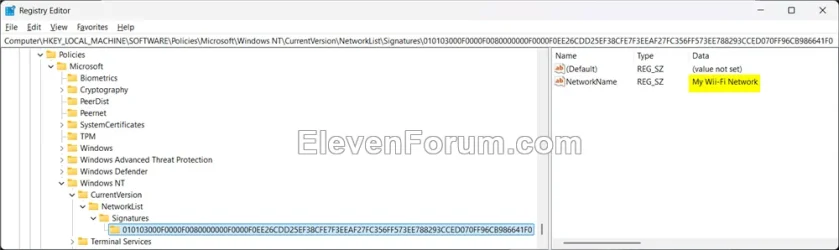

5 Close Local Security Policy.
6 Either sign out and sign in, or restart the computer to fully apply.
That's it,
Shawn Brink
Last edited: