This tutorial will show you how to turn on or off starting the Xbox app when you sign in to your account in Windows 11.
The Xbox app for Windows is where you can go to play and manage PC gaming content on your Windows device. Whether you’re an Xbox Game Pass member, or you’ve bought titles from the Microsoft Store, your games await in the app.
If you use the Xbox app often on your PC, then it could be useful to have it automatically run at startup when you sign in to Windows 11.
The options below will only get applied to the current user and not all users.
References:

Xbox PC app | Xbox
Download the Xbox PC app to play new games, see what your friends are playing, and chat with them across PC, mobile, and console.
www.xbox.com
Xbox Support
 support.xbox.com
Contents
- Option One: Turn On or Off Run Xbox app at Startup in Xbox app Settings
- Option Two: Turn On or Off Run Xbox app at Startup using REG file
- Option Three: Enable or Disable Run Xbox app at Startup in Settings
- Option Four: Enable or Disable Run Xbox app at Startup in Task Manager
1 Open the Xbox app.
2 Click/tap on the user Profile button, and click/tap on Settings. (see screenshot below)
3 Click/tap on App in the left pane of Settings. (see screenshots below)
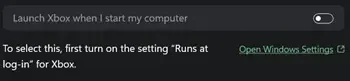
4 Under Startup settings, turn on or off (default) Launch Xbox when I start my computer for what you want.
This Launch Xbox when I start my computer setting will be disabled if you used Option Three or Option Four to disable run Xbox app at startup.
5 You can now close Settings if you like.
1 Do step 2 (on) or step 3 (off) below for what you would like to do.
2 Turn On Run Xbox app at Startup
A) Click/tap on the Download button below to download the file below, and go to step 4 below.
Turn_ON_launch_Xbox_when_I_start_my_computer.reg
Download
(Contents of REG file for reference)
Code:
Windows Registry Editor Version 5.00

[HKEY_CURRENT_USER\Software\Classes\Local Settings\Software\Microsoft\Windows\CurrentVersion\AppModel\SystemAppData\Microsoft.GamingApp_8wekyb3d8bbwe\Xbox.App.Tasks.FullTrustComponent]
"State"=dword:00000002
3 Turn Off Run Xbox app at Startup
This is the default setting.
A) Click/tap on the Download button below to download the file below, and go to step 4 below.
Turn_OFF_launch_Xbox_when_I_start_my_computer.reg
Download
(Contents of REG file for reference)
Code:
Windows Registry Editor Version 5.00

[HKEY_CURRENT_USER\Software\Classes\Local Settings\Software\Microsoft\Windows\CurrentVersion\AppModel\SystemAppData\Microsoft.GamingApp_8wekyb3d8bbwe\Xbox.App.Tasks.FullTrustComponent]
"State"=dword:00000000
4 Save the .reg file to your desktop.
5 If you have Smart App Control turned on, you will need to unblock the downloaded REG file.
6 Double click/tap on the downloaded .reg file to merge it.
7 When prompted, click/tap on Run, Yes (UAC), Yes, and OK to approve the merge.
8 You can now delete the downloaded .reg file if you like.
1 Open Settings (Win+I). (see screenshot below)
2 Click/tap on Apps on the left side, and click/tap on Startup on the right side. (see screenshot below)
3 Turn On (enable) or Off (disable - default) the Xbox app for what you want. (see screenshot below)
If you turn off Xbox at startup, it will disable and gray out the Launch Xbox when I start my computer setting in Option One, and make the registry setting change below.
Code:
[HKEY_CURRENT_USER\Software\Classes\Local Settings\Software\Microsoft\Windows\CurrentVersion\AppModel\SystemAppData\Microsoft.GamingApp_8wekyb3d8bbwe\Xbox.App.Tasks.FullTrustComponent]
"State"=dword:00000001
4 You can now close Settings if you like.
1 Open Task Manager (Ctrl+Shift+Esc).
2 Click/tap on the Startup apps tab in the left pane of Task Manager. (see screenshots below)
3 Select the Xbox app.
4 Click/tap on the available Enable or Disable button on the command bar for what you want.
If you disable Xbox at startup, it will disable and gray out the Launch Xbox when I start my computer setting in Option One, and make the registry setting change below.
Code:
[HKEY_CURRENT_USER\Software\Classes\Local Settings\Software\Microsoft\Windows\CurrentVersion\AppModel\SystemAppData\Microsoft.GamingApp_8wekyb3d8bbwe\Xbox.App.Tasks.FullTrustComponent]
"State"=dword:00000001That's it,
Shawn Brink
Attachments
Last edited: