UPDATE 1/09:
 www.elevenforum.com
Hello Windows Insiders, today we are releasing Windows 11 Insider Preview Build 26220.7523 (KB5072043) to the Dev & Beta Channels.
As a reminder, we are offering the same builds to both the Dev & Beta Channels on Windows 11, version 25H2.
If you are an Insider in the Dev Channel, you now have a window to switch from the Dev Channel to the Beta Channel if you would like. This window will only be open for as long as we’re releasing the same 25H2-based updates across both the Dev and Beta Channels. After we move Dev Channel forward to a higher build number, the opportunity to switch between these channels will close. When the Dev Channel jumps ahead, things might not be as stable as the Dev Channel is today, so we highly encourage you to evaluate which channel you would like to be in during the time in which the window to switch is open.
 www.elevenforum.com
Changes in Dev & Beta Channel builds and updates are documented in two buckets: new features, improvements, and fixes that are being gradually rolled out for Insiders who have turned on the toggle to get the latest updates as they are available (via Settings > Windows Update*) and then new features, improvements, and fixes rolling out to everyone in the Dev & Beta Channels. For more information, see the Reminders section at the bottom of this blog.
 www.elevenforum.com
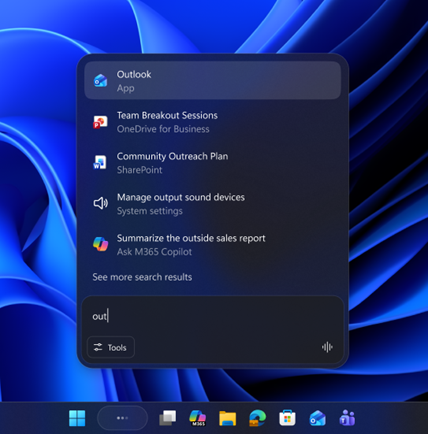
UI of Ask Copilot on the taskbar showing easy access to apps, files, and Microsoft 365 Copilot.
Ask Copilot on the taskbar provides a unified entry point that fluidly connects Microsoft 365 Copilot, agents, and search. This makes Copilot and agents feel like a natural part of how you use your PC, turning everyday interactions into moments of productivity and impact.
 www.elevenforum.com
Ask Copilot in taskbar complements the familiar Windows Search experience, so you can continue using Search as you always have from Start while trying out this new experience.
Ask Copilot uses existing Windows APIs to return apps, files, and settings—just like Windows Search—and does not grant Copilot access to your personal content. For more details, you can learn about privacy and control options for Microsoft 365 Copilot here.
Feedback: Share your thoughts in Feedback Hub (WIN + F) under Desktop Environment > Ask Copilot in taskbar.
Researcher in Microsoft 365 Copilot can dig into a topic and build a detailed report, and now you’ll be able to track its progress without breaking your flow. Give it a try by asking Researcher a question from within the Microsoft 365 Copilot App.
We’re also testing a hover experience—when you move your cursor over the Copilot or Researcher icon, you’ll see real‑time reasoning updates, so you always know how the task is progressing. Researcher will also let you know when it’s done. This opt‑in experience will roll out gradually in the coming weeks to commercial Windows Insider Program customers in the United States who have Microsoft 365 Copilot licenses.
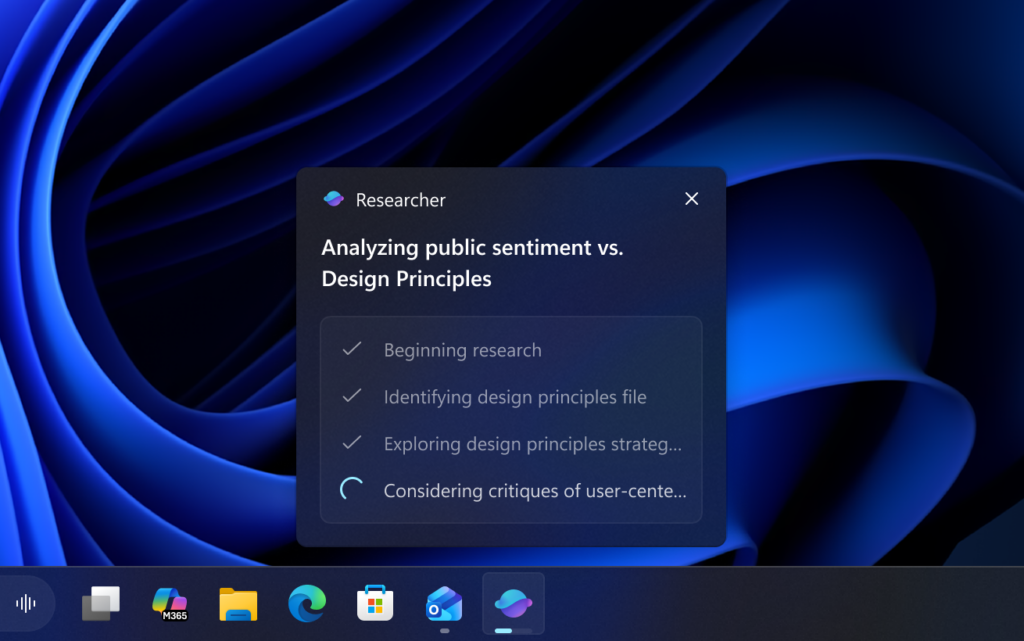
UI showing current progress of Researcher on taskbar hover.
When the report is complete, you will receive a notification as well as seeing a ‘completed’ state on the taskbar. Click either to go back to Microsoft 365 or review the report and turn your learnings into action.
We are experimenting with different ways that Agent tasks will appear in the taskbar to determine how to best meet the needs of customers. (Group the agent task with the Copilot icon on the taskbar or have it as a separate Researcher icon.)
With Agent Launchers, developers can register their agents once, and those agents become available to all supporting experiences—including Ask Copilot on the taskbar with Microsoft 365 Copilot and other installed apps. Microsoft 365 Copilot is already using this framework to register agents like Analyst (for gaining insights from data) and Researcher (for creating detailed reports). Developers can register agents statically at install time or dynamically at runtime, giving flexibility to control availability based on authentication, subscriptions, or other conditions. Documentation is available at Agent Launchers on Windows overview.
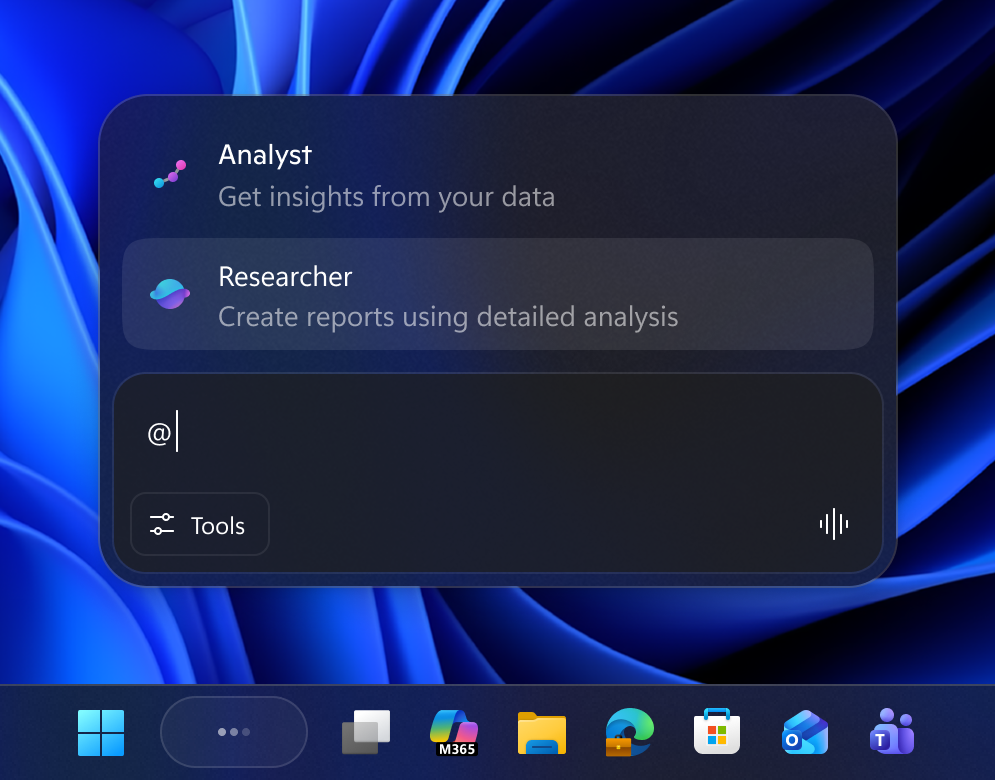
Analyst and Researcher agents in Ask Copilot on the taskbar.
FEEDBACK: Please share your feedback in Feedback Hub (WIN + F) under Developer Platform > App Actions on Windows.
For example, when you land on a “Submit” button, Narrator may announce: “Submit, button.” With personalization, you can choose to hear the label first, the role first, or omit something you don’t need. On a checkbox, you might decide whether the state (“checked” or “not checked”) should come before or after the label—or whether you prefer not to hear the state at all.
To customize these announcements, press Narrator key + Ctrl + P. From there, you can select, unselect, & reorder the properties Narrator speaks for each control type.
You can make changes faster using a natural language input box exclusively on Copilot+ PCs. Simply type what you want—for example: “Don’t announce the selection info or position info,”
These changes apply to that control type throughout the app you’re currently using.
You can also preview how your personalized announcement will sound before saving your changes. If you ever want to go back, simply choose Reset to default to restore Narrator’s original announcement pattern.
Shape Narrator’s detail level the way you prefer—clearer, more predictable, and aligned with how you want to navigate.
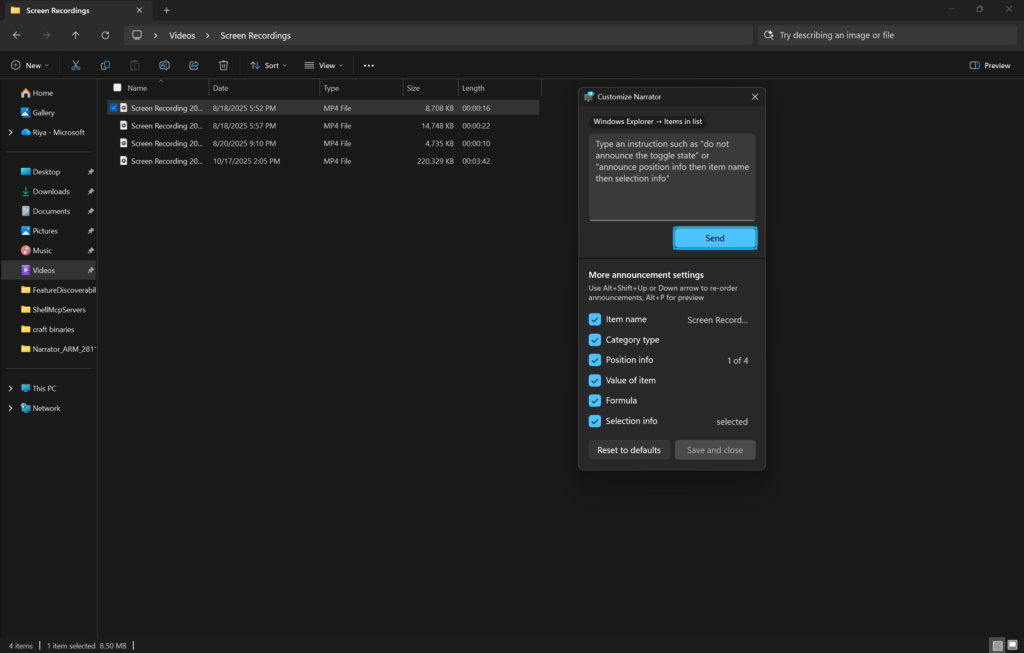
UI showing the Narrator customization panel in Windows 11.
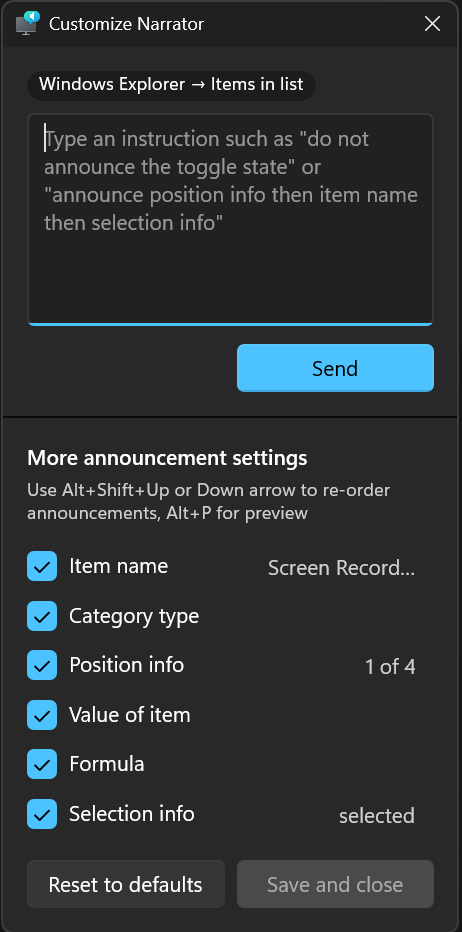
UI showing the Narrator customization panel adjustable announcement settings in Windows 11.
FEEDBACK: Please file feedback in Feedback Hub (WIN + F) under Accessibility > Narrator
 www.elevenforum.com
 www.elevenforum.com
Before the update:
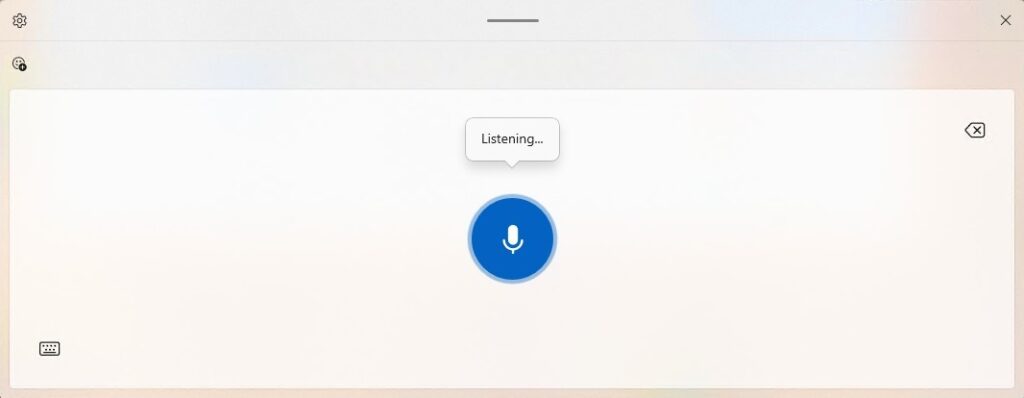
Previous UX: When the dictation key is pressed, an overlay is displayed.
After the update:
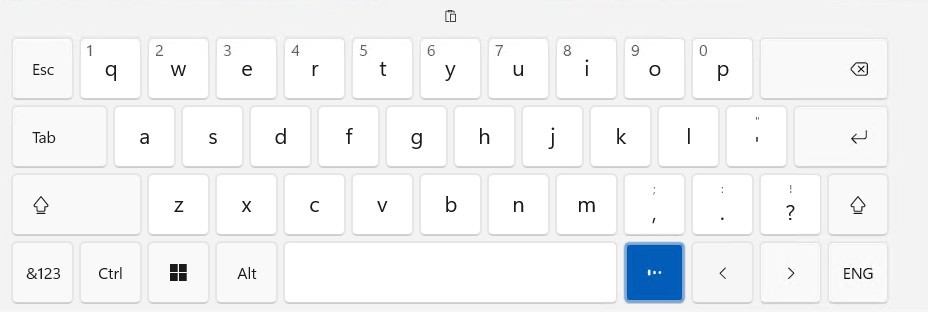
New UX: No overlay; dictation state animations are shown directly on the dictation key.
FEEDBACK: Please share your feedback in Feedback Hub (WIN + F) under Input and Language > Voice Typing (Windows key plus H).
What it shows:
 www.elevenforum.com
 www.elevenforum.com
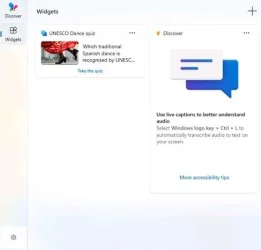
UI showing the revamped Widgets board in Windows 11.
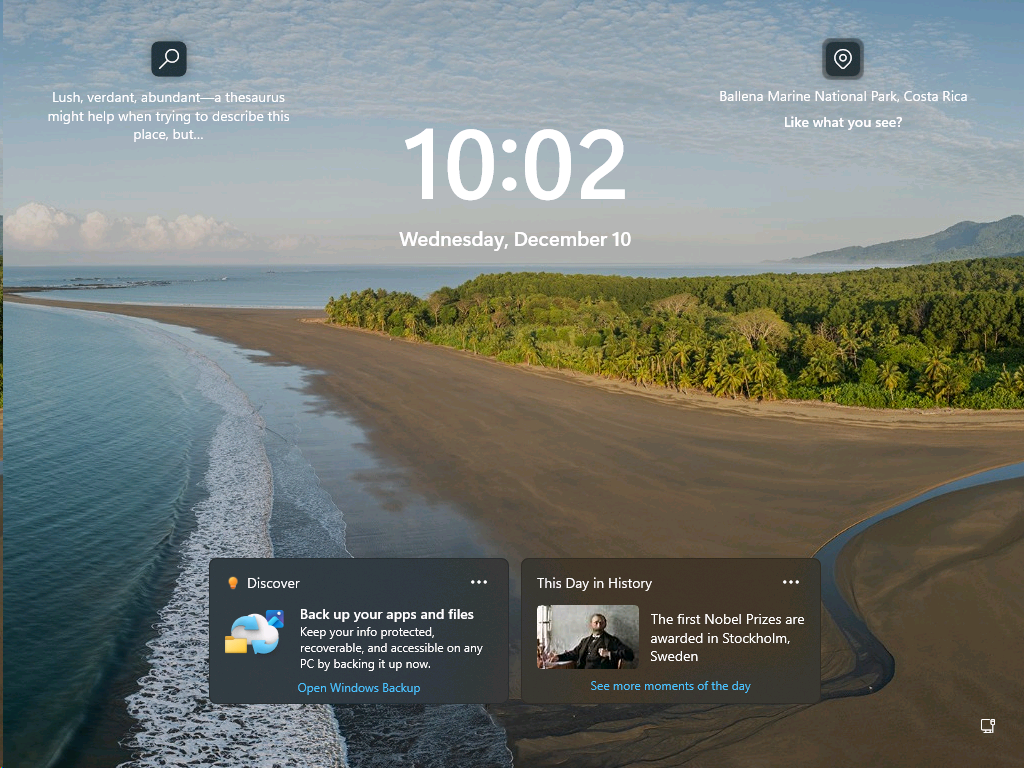
UI of lock screen widgets displaying quick tips and historical highlights.
FEEDBACK: Please share your feedback in Feedback Hub (WIN + F) under Desktop Environment > Widgets.
 www.elevenforum.com
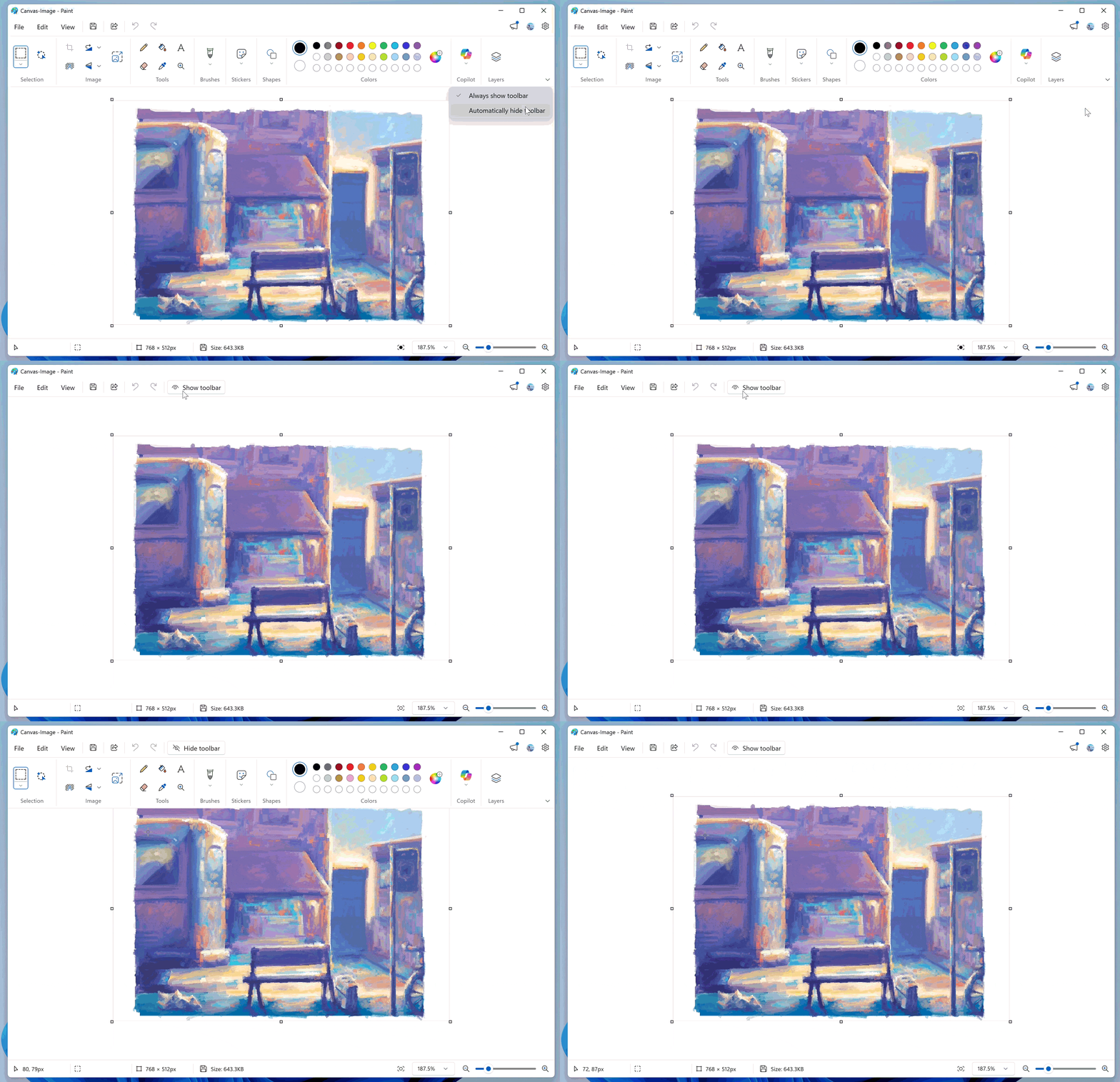
Paint App GIF showing the collapsable toolbar.
Windows Insider Program Team

 blogs.windows.com
Check Windows Updates
UUP Dump:
64-bit ISO download:

ARM64 ISO download:
 www.elevenforum.com
KB5072046 Windows 11 Insider Dev and Beta build 26220.7535 (25H2) - Jan. 9
Windows Insider Blog: Hello Windows Insiders, today we are releasing Windows 11 Insider Preview Build 26220.7535 (KB5072046) to the Dev & Beta Channels. As a reminder, we are offering the same builds to both the Dev & Beta Channels on Windows 11, version 25H2. If you are an Insider in the Dev...
www.elevenforum.com
Windows Insider Blog:
Hello Windows Insiders, today we are releasing Windows 11 Insider Preview Build 26220.7523 (KB5072043) to the Dev & Beta Channels.
As a reminder, we are offering the same builds to both the Dev & Beta Channels on Windows 11, version 25H2.
If you are an Insider in the Dev Channel, you now have a window to switch from the Dev Channel to the Beta Channel if you would like. This window will only be open for as long as we’re releasing the same 25H2-based updates across both the Dev and Beta Channels. After we move Dev Channel forward to a higher build number, the opportunity to switch between these channels will close. When the Dev Channel jumps ahead, things might not be as stable as the Dev Channel is today, so we highly encourage you to evaluate which channel you would like to be in during the time in which the window to switch is open.
Change Windows Insider Program Channel in Windows 11
This tutorial will show you how to change your Windows Insider Program channel to the Canary Channel, Dev Channel, Beta Channel or Release Preview Channel to get Insider preview builds of Windows 11 on your PC. Flighting is the process of running Windows Insider Preview Builds on your device...
www.elevenforum.com
Changes in Dev & Beta Channel builds and updates are documented in two buckets: new features, improvements, and fixes that are being gradually rolled out for Insiders who have turned on the toggle to get the latest updates as they are available (via Settings > Windows Update*) and then new features, improvements, and fixes rolling out to everyone in the Dev & Beta Channels. For more information, see the Reminders section at the bottom of this blog.
Enable or Disable Get Latest Updates as soon as available in Windows 11
This tutorial will show you how to turn on or off "Get the latest updates as soon as they are available" in Windows 11. Starting with Windows 11 build 22621.1635, Microsoft added a new "Get the latest updates as soon as they are available" toggle under Settings > Windows Update. When you turn...
www.elevenforum.com
New features gradually being rolled out with toggle on*
Introducing Ask Copilot on the taskbar with Microsoft 365 Copilot
In October, we introduced Ask Copilot on the taskbar in build 26220.7051 for consumer customers. Now, we’re starting to roll out a version tailored for commercial customers—first announced at Microsoft Ignite. This opt‑in experience will roll out gradually in the coming weeks to commercial Windows Insider Program customers in the United States who have Microsoft 365 Copilot licenses.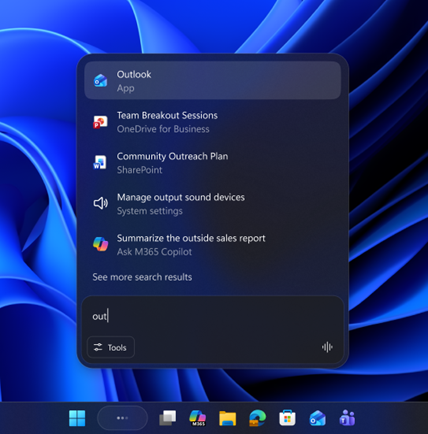
UI of Ask Copilot on the taskbar showing easy access to apps, files, and Microsoft 365 Copilot.
Ask Copilot on the taskbar provides a unified entry point that fluidly connects Microsoft 365 Copilot, agents, and search. This makes Copilot and agents feel like a natural part of how you use your PC, turning everyday interactions into moments of productivity and impact.
- One-click access to Copilot from your taskbar: This opt-in experience is the most integrated and natural way to engage with Copilot through voice or text in the way that works best for you. Commercial users will have all the power of their Work IQ as contextual information that they can reference in their Copilot chats and with Microsoft 365 AI Agents.
- Invoke agents: You’ll be able to invoke agents directly from Ask Copilot on the taskbar using the tools button or by typing “@.”
- Streamlined search experience: Lightning-fast results in a refreshed design makes finding apps, files and settings easier.
Add or Remove Ask Copilot on Taskbar in Windows 11
This tutorial will show you how to turn on or off the Ask Copilot experience on the taskbar for your account in Windows 11. Starting with Windows 11 build 26220.7051 (Dev and Beta), Microsoft is introducing Ask Copilot in taskbar. With the new Ask Copilot in taskbar, Copilot becomes a natural...
www.elevenforum.com
Ask Copilot in taskbar complements the familiar Windows Search experience, so you can continue using Search as you always have from Start while trying out this new experience.
Ask Copilot uses existing Windows APIs to return apps, files, and settings—just like Windows Search—and does not grant Copilot access to your personal content. For more details, you can learn about privacy and control options for Microsoft 365 Copilot here.
Feedback: Share your thoughts in Feedback Hub (WIN + F) under Desktop Environment > Ask Copilot in taskbar.
Introducing Agents on the taskbar
Windows is adding a new way to keep an eye on your Agents right from the taskbar.Researcher in Microsoft 365 Copilot can dig into a topic and build a detailed report, and now you’ll be able to track its progress without breaking your flow. Give it a try by asking Researcher a question from within the Microsoft 365 Copilot App.
We’re also testing a hover experience—when you move your cursor over the Copilot or Researcher icon, you’ll see real‑time reasoning updates, so you always know how the task is progressing. Researcher will also let you know when it’s done. This opt‑in experience will roll out gradually in the coming weeks to commercial Windows Insider Program customers in the United States who have Microsoft 365 Copilot licenses.
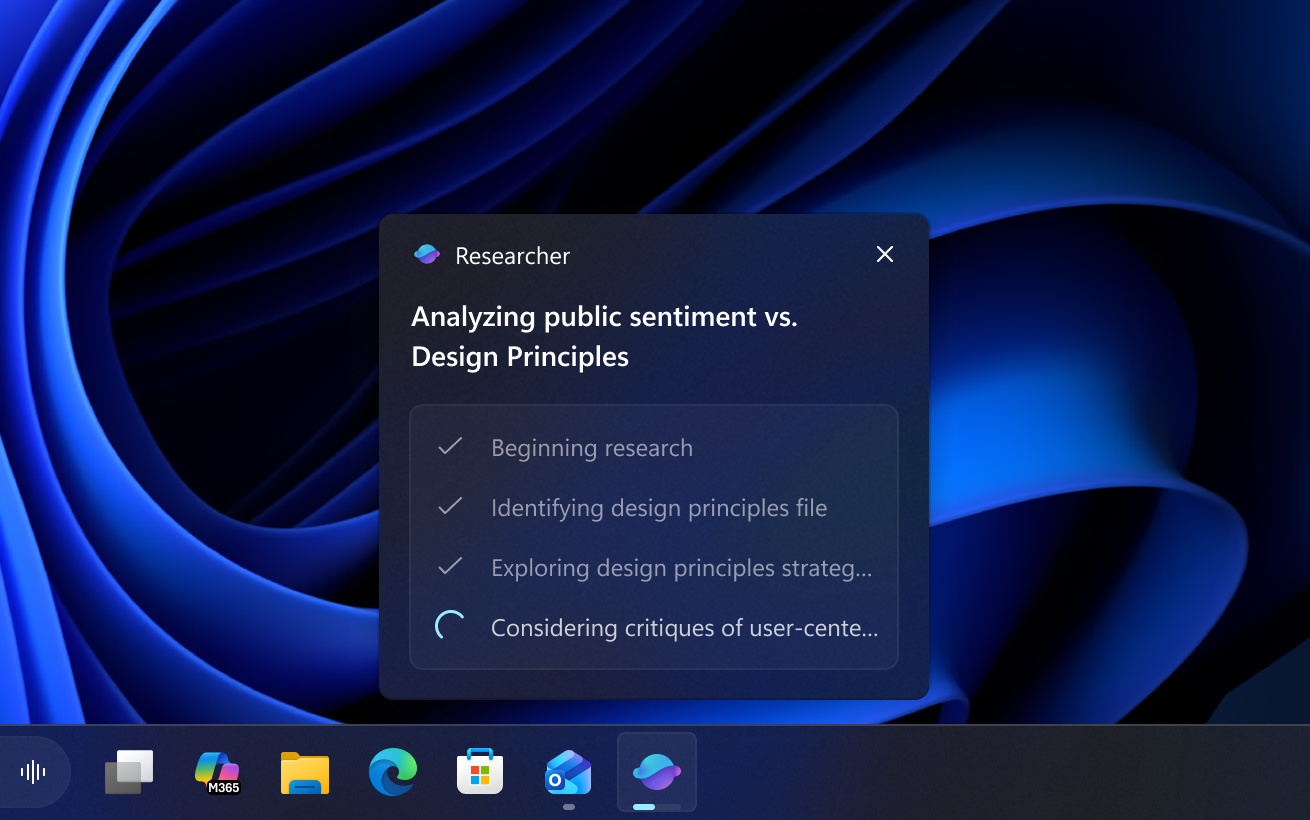
UI showing current progress of Researcher on taskbar hover.
When the report is complete, you will receive a notification as well as seeing a ‘completed’ state on the taskbar. Click either to go back to Microsoft 365 or review the report and turn your learnings into action.
We are experimenting with different ways that Agent tasks will appear in the taskbar to determine how to best meet the needs of customers. (Group the agent task with the Copilot icon on the taskbar or have it as a separate Researcher icon.)
Agent Launchers on Windows
We are introducing Agent Launchers, a new framework that enables Windows apps to register AI agents and make them discoverable across the system. Agent Launchers provides a standardized way for apps to expose their interactive AI agents so they can be found and invoked by Windows and Applications. When launched, these agents open their chat experience so you can start working with them. Agents provide active, collaborative experiences, asking clarifying questions, maintaining context, and taking actions to get things done.With Agent Launchers, developers can register their agents once, and those agents become available to all supporting experiences—including Ask Copilot on the taskbar with Microsoft 365 Copilot and other installed apps. Microsoft 365 Copilot is already using this framework to register agents like Analyst (for gaining insights from data) and Researcher (for creating detailed reports). Developers can register agents statically at install time or dynamically at runtime, giving flexibility to control availability based on authentication, subscriptions, or other conditions. Documentation is available at Agent Launchers on Windows overview.
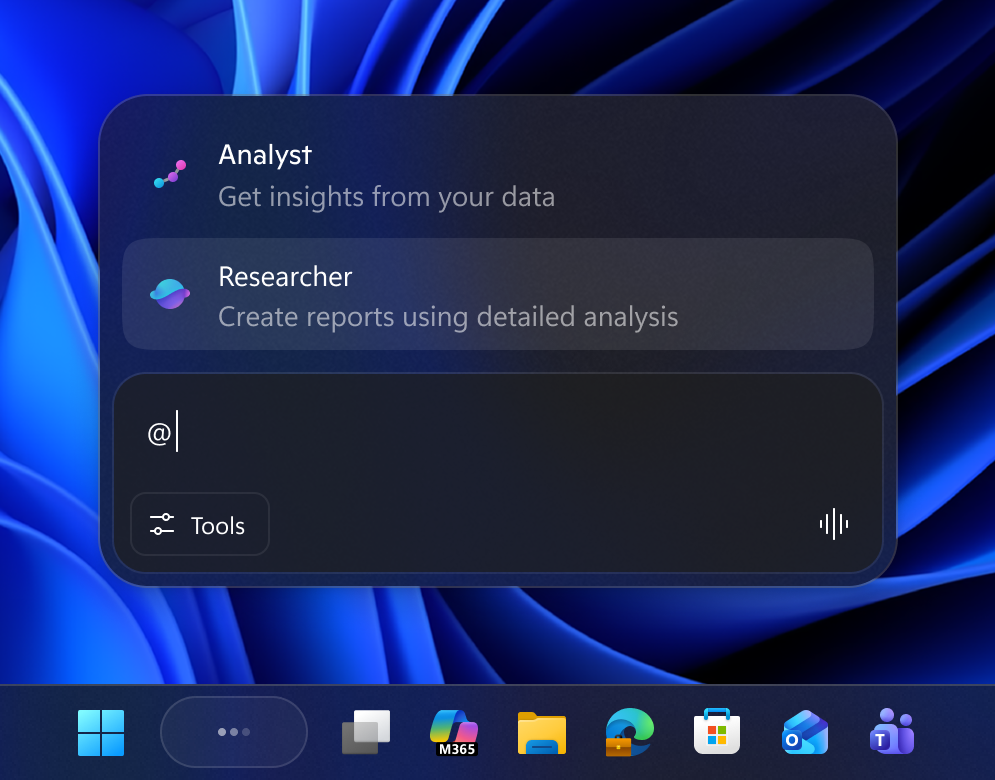
Analyst and Researcher agents in Ask Copilot on the taskbar.
FEEDBACK: Please share your feedback in Feedback Hub (WIN + F) under Developer Platform > App Actions on Windows.
Personalize what Narrator announces
Narrator now gives you more control over how information is spoken when you navigate UI elements in an app. Every app is made up of different control types—such as buttons, checkboxes, links, sliders, and text fields. Each control includes properties (like its name, role, or state) and values (for example, a slider set to “75%”). Narrator usually announces these in a fixed order, but you can now choose which properties are spoken and rearrange their order to match your preferences.For example, when you land on a “Submit” button, Narrator may announce: “Submit, button.” With personalization, you can choose to hear the label first, the role first, or omit something you don’t need. On a checkbox, you might decide whether the state (“checked” or “not checked”) should come before or after the label—or whether you prefer not to hear the state at all.
To customize these announcements, press Narrator key + Ctrl + P. From there, you can select, unselect, & reorder the properties Narrator speaks for each control type.
You can make changes faster using a natural language input box exclusively on Copilot+ PCs. Simply type what you want—for example: “Don’t announce the selection info or position info,”
These changes apply to that control type throughout the app you’re currently using.
You can also preview how your personalized announcement will sound before saving your changes. If you ever want to go back, simply choose Reset to default to restore Narrator’s original announcement pattern.
Shape Narrator’s detail level the way you prefer—clearer, more predictable, and aligned with how you want to navigate.
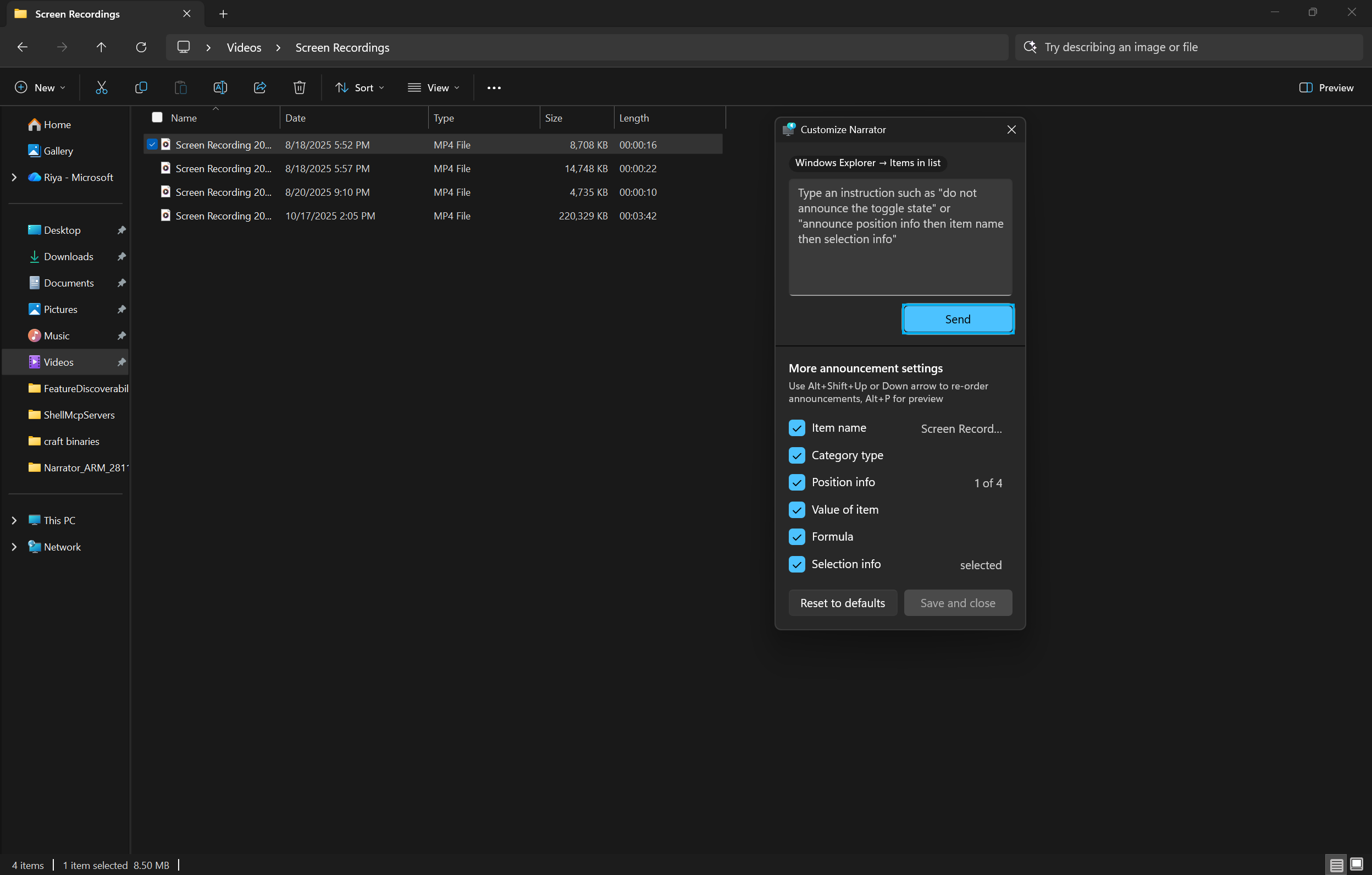
UI showing the Narrator customization panel in Windows 11.
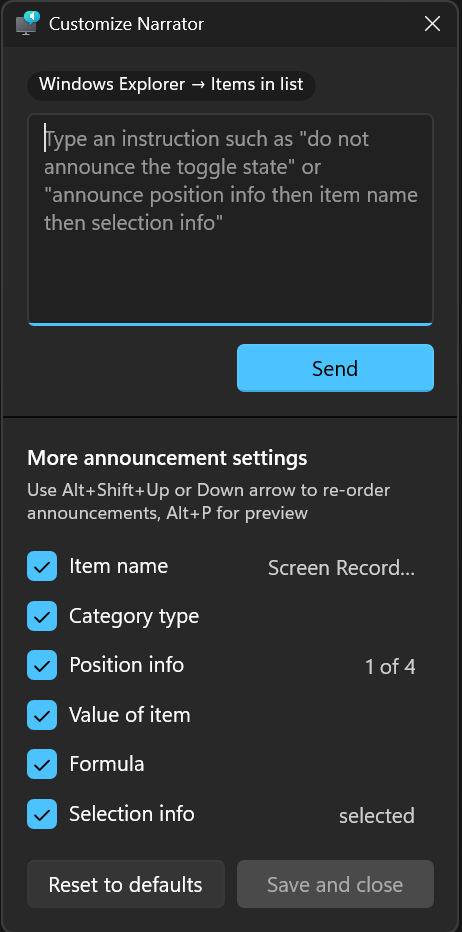
UI showing the Narrator customization panel adjustable announcement settings in Windows 11.
FEEDBACK: Please file feedback in Feedback Hub (WIN + F) under Accessibility > Narrator
Enhancing the Touch Keyboard Experience for Voice Typing
We’re updating the experience when you use voice typing with the touch keyboard to make it feel more streamlined and intuitive. The new design removes the previous full‑screen overlay and instead shows voice typing animations directly on the dictation key, helping you stay focused on what you’re doing without extra visual distractions.
Use Voice Typing to Dictate Text in Windows 11
This tutorial will show you how to use voice typing to dictate text with your voice in Windows 11. In Windows 11, dictation has been updated and renamed as voice typing. Like dictation, voice typing uses online speech recognition technologies to power its speech-to-text transcription service...
www.elevenforum.com
Turn On or Off Show Voice Typing Mic Button on Touch Keyboard in Windows 11
This tutorial will show you how to turn on or off show the voice typing mic button on the touch keyboard for your account in Windows 11. Windows 11 includes a touch keyboard you can click/tap on to enter text. This can be handy if you have a PC with a touchscreen without a physical keyboard...
www.elevenforum.com
Before the update:
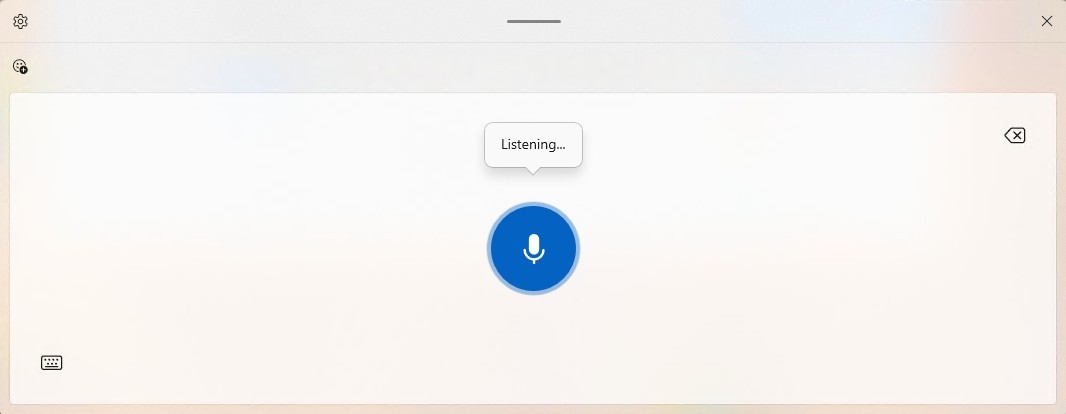
Previous UX: When the dictation key is pressed, an overlay is displayed.
After the update:
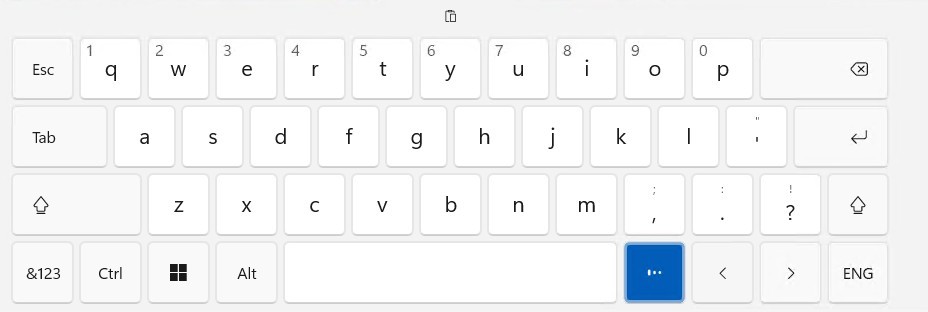
New UX: No overlay; dictation state animations are shown directly on the dictation key.
FEEDBACK: Please share your feedback in Feedback Hub (WIN + F) under Input and Language > Voice Typing (Windows key plus H).
Discover Windows Widget
We’re introducing a new Discover Windows widget on Windows 11. This widget helps you learn about Windows features with short, helpful tips that appear right when you need them.What it shows:
- Quick, actionable tips from the Windows Tips website—covering things like shortcuts, productivity tricks, and security reminders.
- Tips update automatically throughout the day to match common usage moments.
- To Widgets Board: Open the Widgets Board, select Add widgets, then choose Discover.
- To Lock Screen: Go to Settings > Personalization > Lock screen, then add the Discover widget to your lock screen widgets.
Add or Remove Widgets on Widgets Board in Windows 11
This tutorial will show you how to add (pin) or remove (unpin) widgets on the Widgets board for your account in Windows 11. Widgets in Windows are interactive elements that display dynamic content and provide quick access to various apps and features. You can view your location's current...
www.elevenforum.com
Add and Remove Widgets on Lock Screen in Windows 11
This tutorial will show you how to add and remove widgets on the lock screen for your account in Windows 11. You can stay informed and efficient with dynamic updates that bring weather, finance, sports, traffic, and app notifications right to your lock screen. Starting with Windows 11 build...
www.elevenforum.com
UI showing the revamped Widgets board in Windows 11.
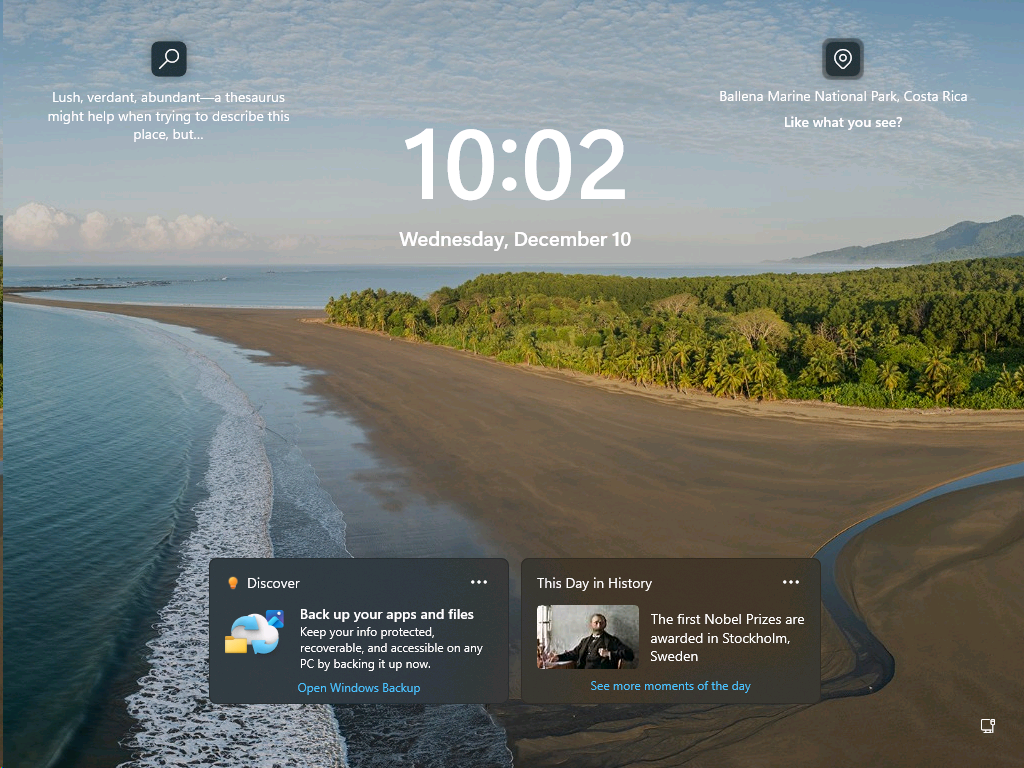
UI of lock screen widgets displaying quick tips and historical highlights.
FEEDBACK: Please share your feedback in Feedback Hub (WIN + F) under Desktop Environment > Widgets.
Changes and Improvements gradually being rolled out with toggle on*
[Settings Agent Language Expansion]
- Last September, we announced that Agent in Settings experience was expanded to include French in Dev and Beta Now, the languages supported by the Settings Agent continue to be expanded. The following locales and languages are supported with this release:
Current:- English: en-gb, en-us
- French: fr-fr, fr-ca
New:
- German: de-de
- Portuguese: pt-br, pt-pt
- Spanish: es-es, es-mx
- Korean: ko-kr
- Japanese: ja-jp
- Hindi: hi-in
- Italian: it-it
- Chinese (Simplified): zh-cn
- The Copilot prompt box in Click to Do now supports Microsoft 365 Copilot. Ask Microsoft 365 Copilot about what’s on your screen. Quickly type a custom prompt directly into a text box, which is then sent to Microsoft 365 Copilot along with your selected screen content. This change is not yet rolling out to Windows Insiders in the EEA (European Economic Area) or China. This feature previously rolled out last September to Dev and Beta channel outside of EEA.

Use Click to Do in Windows 11
This tutorial will show you how to use Click to Do to perform AI actions with text and images for your account on a Windows 11 Copilot+ PC. Click to Do (preview) helps you get things done faster by identifying text and images on your screen that you can take actions with. Click to Do analyzes...
www.elevenforum.com
- The AltGr layer is now enabled for the Arabic 101 keyboard layout. The left Alt key continues to function as before, while the right Alt key acts as a modifier to access additional symbols. The first new symbol mapped to AltGr on the Arabic 101 layout is the Saudi Riyal currency symbol (AltGr + S). Users who switch languages with Alt + Shift can continue to use the left Alt + Shift or the general shortcut Windows logo key + Space. Arabic 102and Arabic 102 AZERTY layouts are updated similarly.
- We’re introducing a more streamlined setup flow to make it even easier to get started with Voice Access. The redesigned flow helps download the right speech model for your language of choice; select your preferred input microphone & highlights what Voice Access can help you do on your PC.

Turn On or Off Voice Access in Windows 11
This tutorial will show you how to turn on or off voice access for your account in Windows 11. Voice access is a new experience starting with Windows 11 build 22518 that enables everyone, including people with mobility disabilities, to control their PC and author text using only their voice and...
www.elevenforum.com
- We’re temporarily stopping the rollout of the new animations when sliding between open apps on the taskbar to investigate some issues – appreciate your patience.
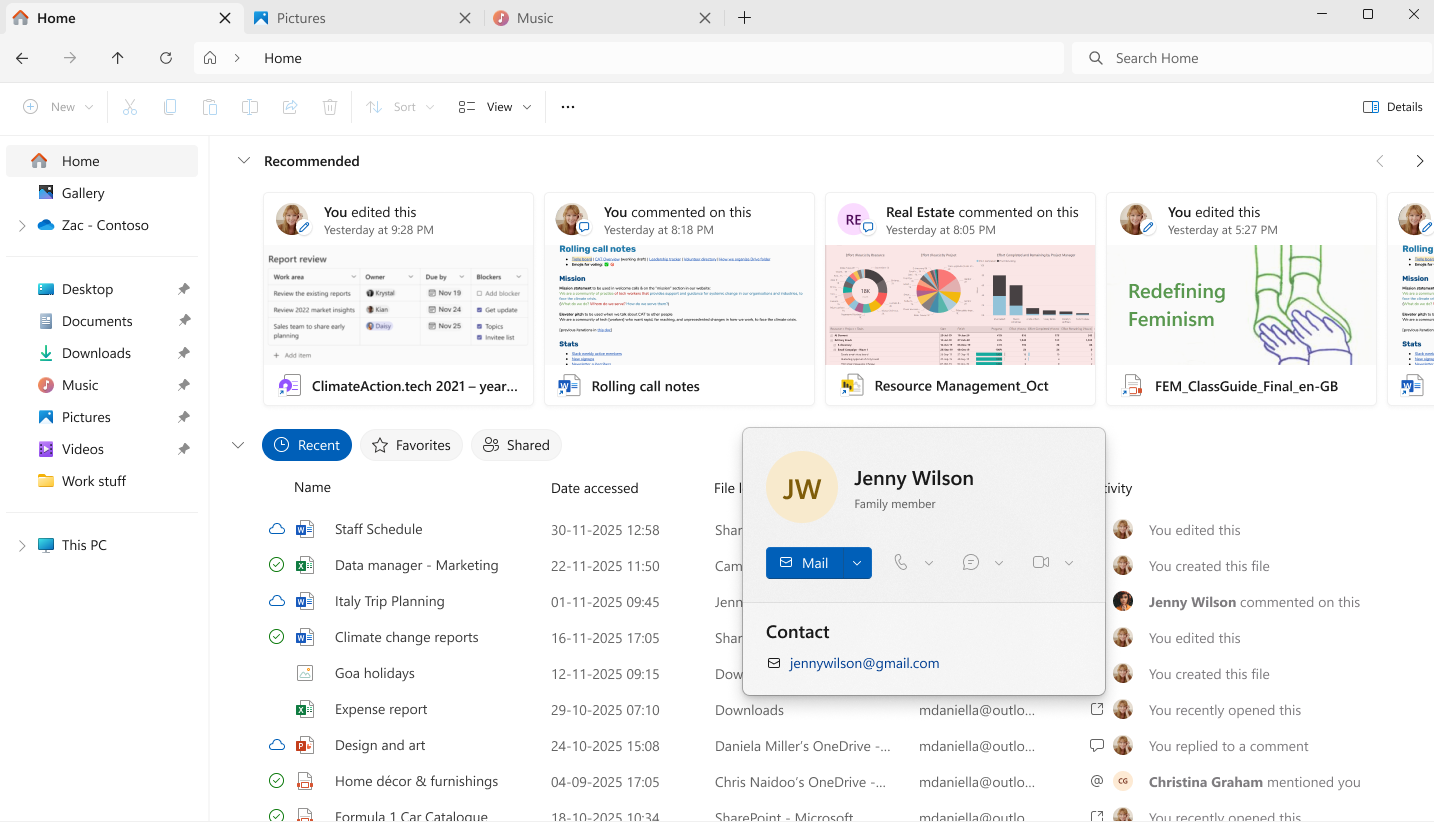
- For Windows Insiders signed in with a Microsoft account (consumer cloud), File Explorer will now begin showing people icons under the “Activity” column on File Explorer Home and in areas like Recommended, Favorites, and Recent. When you hover or click on a people icon, File Explorer will display the new Windows People Card (WPC), giving you lightweight context about who recently interacted with the file and providing quick actions like starting a chat or a call through your preferred communication apps.

Enable or Disable Show Recommended Section in File Explorer Home in Windows 11
This tutorial will show you how to turn on or off showing the Recommended section instead of Quick access in File Explorer Home for your account in Windows 11. Home in the navigation pane of File Explorer allows you to quickly access and view your pinned locations, frequent folders, and recent...
www.elevenforum.com

Add and Remove Favorites in File Explorer Home in Windows 11
This tutorial will show you how to add, remove, or clear and reset Favorites in File Explorer Home for your account or all users in Windows 11. Starting with Windows 11 build 22593, Quick access in File Explorer (Win+E) is now called Home. The name Quick access has been repurposed for the...
www.elevenforum.com

Add or Remove Recent Files in File Explorer Home in Windows 11
This tutorial will show you how to add or remove showing Recent files in File Explorer Home for your account in Windows 11. Starting with Windows 11 build 22593, Quick access in File Explorer (Win+E) is now called Home. The name Quick access has been repurposed for the pinned/frequent Folders...
www.elevenforum.com
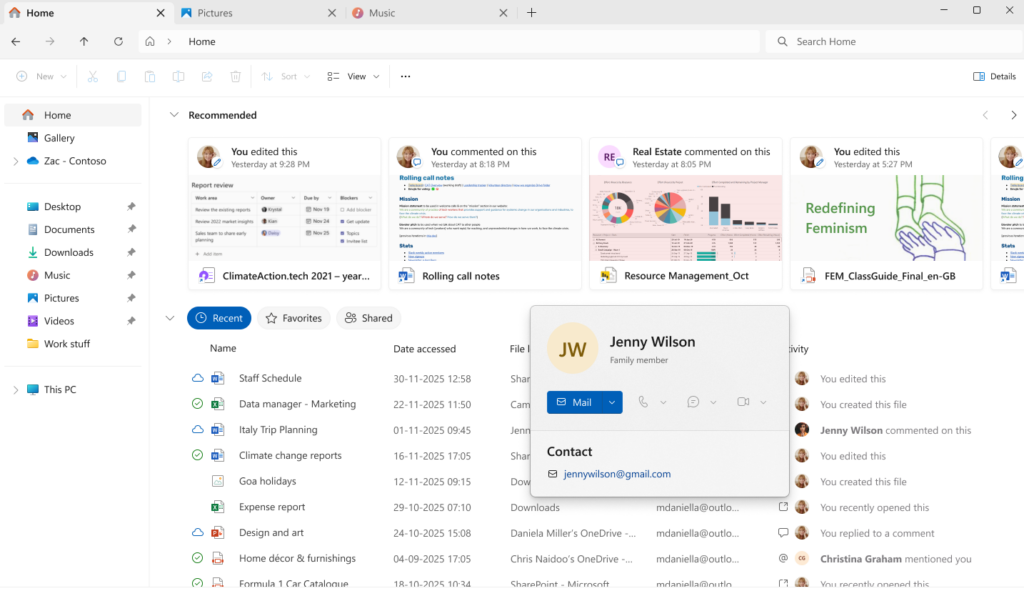
UI showing the File Explorer Windows People Card for a family member.
Fixes gradually being rolled out with toggle on*
[Taskbar and System Tray]
- When your taskbar is set to uncombined, if you have an app open with many windows, they will no longer all move as a set to the overflow area when there is not enough space on the taskbar, and instead only the ones specifically within the set that don’t have space. With this change, the overflow area should no longer appear to display with lots of available space.
- Fixed an issue where the label in the taskbar might not be displayed correctly if you had an app with multiple windows open.
[File Explorer]
- Fixed an issue causing File Explorer recently to show a white flash when navigating between pages after the latest flights.
- Made some improvements to File Explorer search performance by eliminating duplicate file indexing operations, which should result in faster searches and reduced system resource usage during file operations.
- Enhanced search reliability with improved handling of system and secondary drive locations, to help ensure more accurate search results across all your storage devices.
- Fixed an issue which could prevent OneDrive files from opening in RemoteApp sessions (showing error 0x80070057).
- Improved Voice Access support in File Explorer’s Gallery view, so you can now open photos by saying ‘click [number]’ instead of requiring ‘double click,’ streamlining voice-controlled navigation.
[Login and lock screens]
- Fixed a few more issues which could lead to the login screen becoming unresponsive and not rendering.
[Display and Graphics]
- Fixed an issue which could lead to Adaptive Brightness not working immediately after rebooting your PC.
[Windows Update]
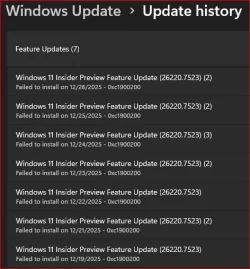
- Fixed an issue resulting in an increase in Insiders seeing error 0x800F0922 when trying to install the latest updates recently.
[Other]
- Fixed an issue where text might not display correctly in Windows Recovery when using the Japanese display language.
- Fixed an issue where in some cases valid Windows license migration might fail when upgrading because the device couldn’t register with the Windows Activation server for its CLIP / online entitlement, requiring using the troubleshooter to fix.
- Fixed an issue where external virtual switches might lose their physical network adapter (NIC) bindings after a host restart. When this happened, the switches would revert to internal mode, resulting in loss of network connectivity for virtual machines and blocking normal server operations.
- Fixed an issue where the Share dialog might unexpectedly show an option to share to Shell Experience Host.
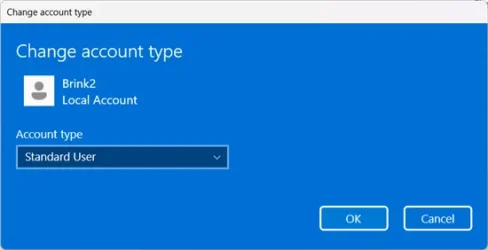
- Updated the “Change Account Type” dialog in Settings > Accounts > Other accounts to better align with other modern dialogs in Settings.
- If you were seeing a message saying “There’s a newer build available” in Windows Insider Program Settings, but there wasn’t actually, that should be resolved now.
Known issues
[Agents on the Taskbar]
- Researcher may appear unresponsive if you click on the taskbar icon or status card when task is in progress. Switching to a different conversation then back to the researcher task within Microsoft 365 Copilot should fix the problem.
[Xbox full screen experience for PC]
- Some apps may behave unexpectedly when using FSE, particularly those that expect to be locked to a given size or launch additional windows.
[Taskbar & System Tray]
- We’re working on the fix for an issue which is causing the Start menu to not open for some Insiders on click, although it will open if you press the Windows key. This issue may also potentially impact the notification center (which you can open with WIN + N) and quick settings (WIN + A).
- We’re investigating an issue where for some Insiders apps aren’t showing in the system tray when they should be.
- [NEW] We’re working on the fix for an issue in the latest builds where, when the taskbar is set to autohide, it might invoke before interacting with the bottom of the screen, blocking the use of apps in that area.
[File Explorer]
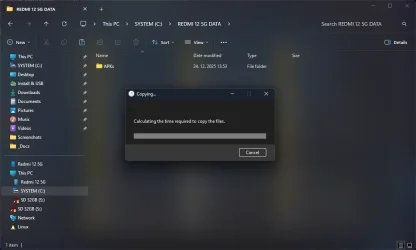
- Scrollbar and footer are missing and showing a white block instead when text is scaled in dark mode version of the copy dialog.
- We’re working on the fix for an issue where opening the context menu is causing explorer.exe to crash for some Insiders after the previous flight.
[Bluetooth]
- We’re working on the fix for an issue causing Bluetooth device battery level to not show for some Insiders.
[Click to Do]
- [NEW] We’re investigating an issue where the Microsoft 365 Copilot prompt box on selected images does not function if the Microsoft 365 Copilot app is not running.
Paint App update rolling out to Canary & Dev Channels
- With Paint version 11.2511.281.0, we’re introducing the collapse toolbar feature in Paint. To get started, open Paint and click the chevron icon at the bottom-right of the ribbon to enable Automatically hide toolbar. Once the toolbar collapses, use the Show toolbar button to bring it back and switch tools. To hide it again, click the Hide toolbar button or anywhere outside the toolbar. When you’re ready to return to the default view, click the chevron icon and select Always show toolbar.
Hide or Show Toolbar in Paint app in Windows 11
This tutorial will show you how to always show or automatically hide the ribbon toolbar in the Paint app for your account in Windows 11. Starting with Paint app version 11.2511.281.0 and higher for Windows Insiders in the Canary and Dev Channels on Windows 11, Microsoft is introducing the...
www.elevenforum.com
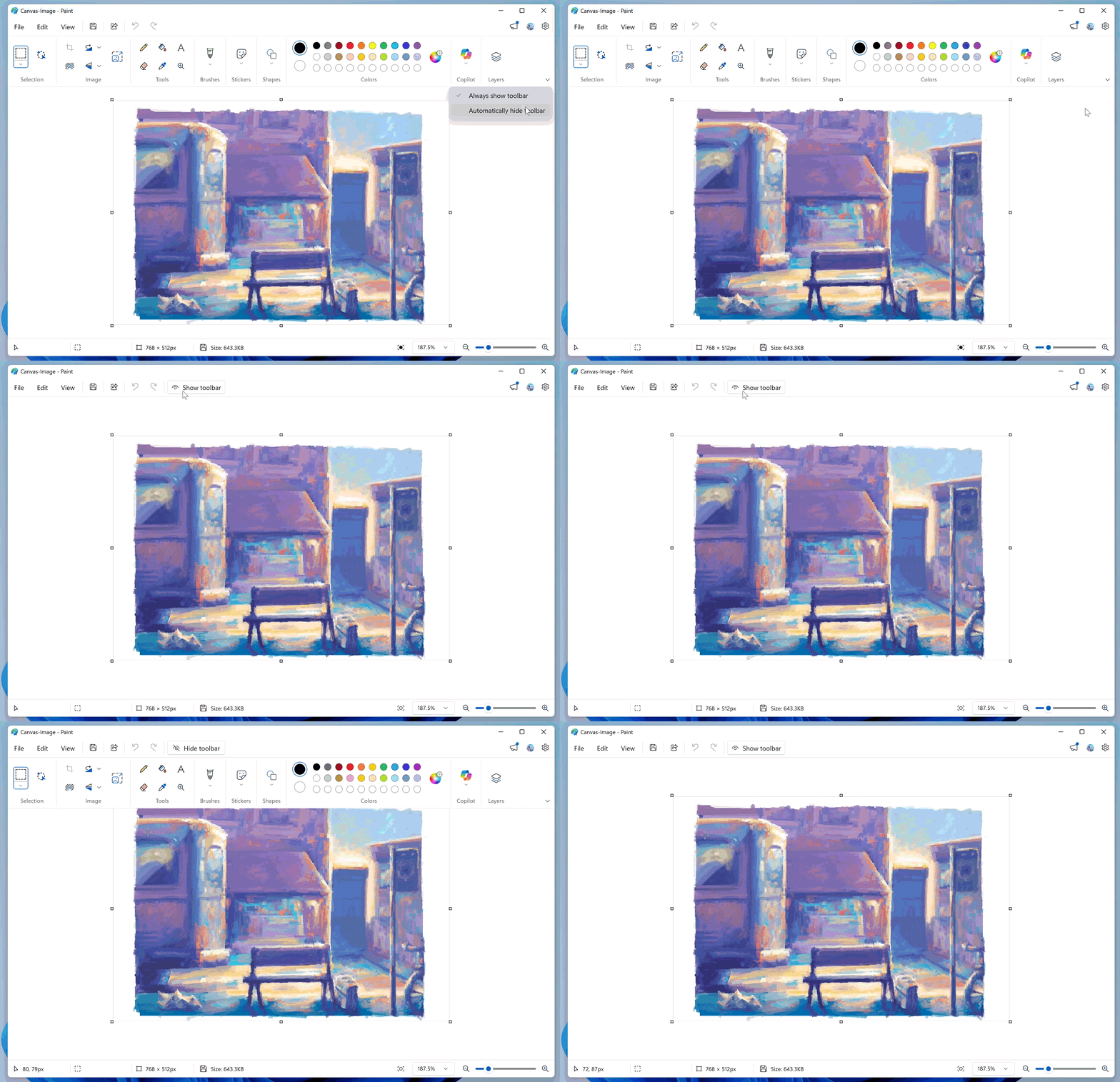
Paint App GIF showing the collapsable toolbar.
- FEEDBACK: Please file feedback in Feedback Hub (WIN + F) under Apps > Paint.
Reminders for Windows Insiders in the Dev & Beta Channels
- Updates are based on Windows 11, version 25H2 via an enablement package (Build 26220.xxxx).
- Many features are rolled out using Controlled Feature Rollout technology, starting with a subset of Insiders and ramping up over time as we monitor feedback to see how they land before pushing them out to everyone in this channel.
- For Windows Insiders who want to be the first to get features gradually rolled out to you, you can turn ON the toggle to get the latest updates as they are available via Settings > Windows Update*. Over time, we will increase the rollouts of features to everyone with the toggle turned on. Should you keep this toggle off, new features will gradually be rolled out to your PC over time once they are ready.
- Features and experiences included in these builds may never get released as we try out different concepts and get feedback. Features may change over time, be removed, or replaced and never get released beyond Windows Insiders. Some of these features and experiences could show up in future Windows releases when they’re ready.
- Some features in active development we preview with Windows Insiders may not be fully localized and localization will happen over time as features are finalized. As you see issues with localization in your language, please report those issues to us via Feedback Hub.
- Check out Flight Hub for a complete look at what build is in which Insider channel.
Windows Insider Program Team
Source:
Announcing Windows 11 Insider Preview Build 26220.7523 (Dev & Beta Channels)
Hello Windows Insiders, today we are releasing Windows 11 Insider Preview Build 26220.7523 (KB5072043) to the Dev & Beta Channels. As a reminder, we are offering the same builds to both the Dev & Beta Channels on Windows 11
blogs.windows.com
Check Windows Updates
UUP Dump:
64-bit ISO download:
Select language for Windows 11 Insider Preview Feature Update (26220.7523) amd64
Select language for Windows 11 Insider Preview Feature Update (26220.7523) amd64 on UUP dump. UUP dump lets you download Unified Update Platform files, like Windows Insider updates, directly from Windows Update.
uupdump.net
ARM64 ISO download:
Select language for Windows 11 Insider Preview Feature Update (26220.7523) arm64
Select language for Windows 11 Insider Preview Feature Update (26220.7523) arm64 on UUP dump. UUP dump lets you download Unified Update Platform files, like Windows Insider updates, directly from Windows Update.
uupdump.net
UUP Dump - Download Windows Insider ISO
UUP Dump is the most practical and easy way to get ISO images of any Insider Windows 10 or Windows 11 version, as soon as Microsoft has released a new build. UUP Dump creates a download configuration file according to your choices, downloads necessary files directly from Microsoft servers, and...
www.elevenforum.com
Last edited: