General Type Special Characters and Symbols in Windows 11

  • Thread starter Thread starter Brink
  • Start date Published: Start date Updated Updated:

Symbols_banner.png

This tutorial will show you different ways to find and type special characters, accents (diacritical mark), and symbols in Windows 11.

Starting with Windows 11 build 262100.6725 (24H2), Microsoft is adding a new keyboard shortcut to make it easier for you to insert an En dash (–) or Em dash (—) while typing anywhere in Windows. Going forward, pressing WIN + Minus (-) will insert En dash, and WIN + Shift + Minus (-) will insert Em dash. Note – if you have Magnifier running, WIN + Minus (-) will still zoom out Magnifier, rather than inserting an En dash.


Contents

  • Option One: Type Special Characters and Symbols using Emoji Panel
  • Option Two: Type Special Characters and Symbols using Emoji Panel on Touch Keyboard
  • Option Three: Type Special Characters and Symbols using Touch Keyboard
  • Option Four: Type Special Characters and Symbols using Character Map
  • Option Five: Type Special Characters and Symbols using Alt Codes


Option One

Type Special Characters and Symbols using Emoji Panel


1 Place the cursor where you want to insert a symbol, and open the Emoji Panel (Win+.).

2 Click/tap on the Symbols button on the toolbar, or scroll down to the Symbols section. (see screenshot below)

Type_special_characters_and_symbols_from_Emoji_Panel-1.png

3 The available symbols are divided into the General punctuations, Currency symbols, Latin symbols, Geometric symbols, Math symbols, Supplemental symbols, and Language symbols categories to select from. (see screenshot below)

4 Click/tap on the symbol you want to insert where the cursor is at in the text box.

Type_special_characters_and_symbols_from_Emoji_Panel-2.png


Option Two

Type Special Characters and Symbols using Emoji Panel on Touch Keyboard


1 Open the Touch Keyboard.

2 Click/tap on the Emoji button on the Touch Keyboard. (see screenshot below)

Type_special_characters_and_symbols_from_Touch_Keyboard-1.png

3 Click/tap on the Symbols button on the toolbar. (see screenshot below)

Type_special_characters_and_symbols_from_Touch_Keyboard-2.png

4 The available symbols are divided into the General punctuations, Currency symbols, Latin symbols, Geometric symbols, Math symbols, Supplemental symbols, and Language symbols categories to select from. (see screenshot below)

5 Place the cursor in the text box where you want to insert a symbol, and click/tap on the symbol in the Touch Keyboard to insert it at the cursor's location.

Type_special_characters_and_symbols_from_Touch_Keyboard-3.png


Option Three

Type Special Characters and Symbols using Touch Keyboard


1 Open the Touch Keyboard.

2 Place the cursor in the text box where you want to insert a symbol.

3 Perform one of the following actions: (see screenshot below)
  • Press and hold on a key you want on the Touch Keyboard to see that key's available accents or symbols, slide your finger over to the character you want to insert, and release finger to insert.
  • Left click and hold on a key you want on the Touch Keyboard to see that key's available accents or symbols, move the pointer over to the character you want to insert, and release left click to insert.
Type_special_characters_and_symbols_from_Touch_Keyboard.png


Option Four

Type Special Characters and Symbols using Character Map


1 Open Character Map (charmap.exe).

2 Select a Font you want to use in the drop menu. (see screenshot below)

Type_special_characters_and_symbols_from_Character_Map-1.png

3 Search for and click/tap on the character you want to insert. (see screenshot below step 5)

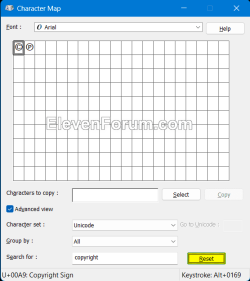
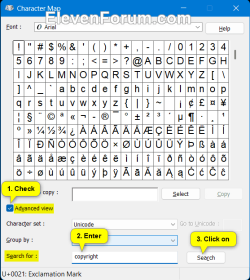
You can check Advanced view to:

1) Select to Group by "Unicode Subrange", and select a category of symbols to narrow your search.

2) Use Search for to search for a specific character (ex: "copyright"). Reset will clear the search.

Type_special_characters_and_symbols_from_Character_Map-2.png Type_special_characters_and_symbols_from_Character_Map-3.pngType_special_characters_and_symbols_from_Character_Map-4.png


4 Click/tap on the Select button. (see screenshot below step 5)

If wanted, you can select more than one character to insert at once.


5 Click/tap on the Copy button to copy the selected character(s) to the clipboard. (see screenshot below)

Type_special_characters_and_symbols_from_Character_Map-5.png

6 Place the cursor in the text box where you want to insert the symbol(s), and paste (Ctrl+V) to insert the copied symbol(s).


Option Five

Type Special Characters and Symbols using Alt Codes


This option requires using a numeric keypad.


1 Place the cursor in the text box where you want to insert a symbol.

2 Press and hold the Alt key.

3 Type the numbers (ex: 0169) for the symbol (ex: "©") you want in the table at the link below.


4 Release the Alt key to insert the symbol.


That's it,
Shawn Brink
 
Last edited:
Brink,

This is a shot in the dark but do you know what this symbol is?
The symbol is between the FF pairs of the next line
FFFF
As you will see by moving left-/right-arrow keys, it is a single character that merely looks like a colon followed by a space.
- I cannot find it in any code tables.
- It's been in the subject line of several emails from Chinese companies.
- The VBA processing I do with my email subject lines cannot detect the symbol let alone do anything about it.

If I can find out what it is then I might be one step closer to handling it properly.


All the best,
Denis
 

My Computer

System One

  • OS
    Windows 11 Home x64 Version 25H2 Build 26200.8037
Thanks.
Wikipedia said:
(U+FF1A FULLWIDTH COLON)
I'll have to study that subject then. I haven't had to deal with character sets before.
My hope is to be able to remove it using something similar to the patterns I currently have in my Outlook VBA,
myItem.Subject = Replace(myItem.Subject, "&", " and ")


All the best,
Denis
 

My Computer

System One

  • OS
    Windows 11 Home x64 Version 25H2 Build 26200.8037
I don't know VBA, but you're supposed to use ChrW() or the funky &H(hex byte) notation to generate a Chinese character for matching purposes. /shrug
 

My Computer

System One

  • OS
    Windows 7
OK, I'll study that as well.


Denis
 

My Computer

System One

  • OS
    Windows 11 Home x64 Version 25H2 Build 26200.8037
garlin,

In studying your advice, I stumbled across the suggestion of excluding all characters outside a stated range instead of seeking out then removing specific characters that I don't want.
I recall a couple of years ago I got several emails with emoji-like characters in their Subject lines so deciding what to accept instead of what to reject would be better.
Removing special characters - Post by V Brunelle dated 21st July 2015

So I have kept my existing

Public Sub SetUniqueTitle()
'Initialisation section
Dim a
Dim c
Dim Output
Dim DTG
Dim myOlApp As New Outlook.Application
Dim myItem As Object
Set myOlApp = CreateObject("Outlook.Application")
Set myItem = myOlApp.ActiveInspector.CurrentItem

myItem.Subject = Replace(myItem.Subject, ":", " - ")
myItem.Subject = Replace(myItem.Subject, "&", " and ")
myItem.Subject = Replace(myItem.Subject, "|", " - ")
myItem.Subject = Replace(myItem.Subject, "£", "GBP")
myItem.Subject = Replace(myItem.Subject, "'", "") ' No longer needed - the character set step below takes care of this as well
myItem.Subject = Replace(myItem.Subject, "!", "")' No longer needed - the character set step below takes care of this as well

and have merely added this step

For i = 1 To Len(myItem.Subject)
c = Mid(myItem.Subject, i, 1)
If (c >= "a" And c <= "z") Or (c >= "A" And c <= "Z") Or (c >= "0" And c <= "9") Or (c = ".") Or (c = ",") Or (c = "-") Or (c = "#") Then
Output = Output & c 'accept in-range characters
Else
Output = Output & " " 'replace unacceptable characters with spaces
End If
Next
myItem.Subject = Output

followed by some repeated double space removals just to tidy things up

myItem.Subject = Replace(myItem.Subject, " ", " ")

and then my existing manipulation of adding date-time transmitted/received to the start of the Subject along with an Rx/Tx marker for Received/Sent.

If Application.ActiveExplorer.CurrentFolder.Name = "Sent Items" Then WhoBy = "tx" Else WhoBy = "rx"
' Set DTG at start of Subject - UK SentOn format is 09/03/2023 19:27:42
DTG = Mid(myItem.SentOn, 7, 4) & Mid(myItem.SentOn, 4, 2) & Left(myItem.SentOn, 2) & " " & Mid(myItem.SentOn, 12, 2) & Mid(myItem.SentOn, 15, 2) & Mid(myItem.SentOn, 18, 2)
' Correct for case of 00:00:00 {exactly midnight}. This happened once in 2021 in a similar script after having used these scripts for over twenty years.
If Len(Mid(myItem.SentOn, 12, 2) & Mid(myItem.SentOn, 15, 2) & Mid(myItem.SentOn, 18, 2)) = 0 Then DTG = Mid(myItem.SentOn, 7, 4) & Mid(myItem.SentOn, 4, 2) & Left(myItem.SentOn, 2) & " 000000"
myItem.Subject = DTG & " " & WhoBy & " " & myItem.Subject
myItem.Save

End Sub

So, for example, the Subject
Re:RE: 1234567890 Could you confirm if you have receive it?
becomes
20240519 204556 rx Re RE - 1234567890 Could you confirm if you have receive it


I did not imagine that a workable solution would be this straightforward.
I'll keep an eye on things for a while as there might well be other characters that I'd be happy to leave in.

None of the characters that make it through will cause any problems with my backup scripts after I drag the emails into File explorer folders for permanent retention [the Subject lines of MSOffice Outlook emails dragged into the filing system determine their filenames].


All the best,
Denis
 
Last edited:

My Computer

System One

  • OS
    Windows 11 Home x64 Version 25H2 Build 26200.8037
Why does ALT+248 produce the degree symbol in MS Word, as in 15°C, but it produces ◘ here?
I have region and language set to United Kingdom.
 

My Computers

System One System Two

  • OS
    Windows 11 Pro 25H2 26200.8655
    Computer type
    Laptop
    Manufacturer/Model
    Acemagic LX15PRO
    CPU
    AMD Ryzen 7 5825U with Radeon Graphics
    Memory
    16GB
    Screen Resolution
    1920 x 1080
    Hard Drives
    SSD 2TB
    Internet Speed
    30 Mbps
    Browser
    Brave
    Antivirus
    Webroot Secure Anywhere
    Other Info
    System 3

    Acer Swift SF114-34 laptop
    OS Windows 11 Pro 26200.8524
    CPU Pentium Silver N6000
    RAM 4GB
    SSD Samsung 970 EVO Plus SSD 2TB (an upgrade)
  • Operating System
    Windows 11 Pro 23H2 22631.2506
    Computer type
    Laptop
    Manufacturer/Model
    HP Mini 210-1090NR PC (bought in late 2009!)
    CPU
    Atom N450 1.66GHz
    Memory
    2GB
    Browser
    Brave
    Antivirus
    Webroot
Why does ALT+248 produce the degree symbol in MS Word, as in 15°C, but it produces ◘ here?
I have region and language set to United Kingdom.
Hmm, I'm not sure why. Alt+248 gives me the proper ° symbol.

It looks like it's in reverse contrast.
 

My Computers

System One System Two

  • OS
    Windows 11 Pro for Workstations
    Computer type
    PC/Desktop
    Manufacturer/Model
    Custom self build
    CPU
    Intel i7-8700K 5 GHz
    Motherboard
    ASUS ROG Maximus XI Formula Z390
    Memory
    64 GB (4x16GB) G.SKILL TridentZ RGB DDR4 3600 MHz (F4-3600C18D-32GTZR)
    Graphics Card(s)
    ASUS ROG-STRIX-GTX1080TI-O11G-GAMING (11GB GDDR5X)
    Sound Card
    Integrated Digital Audio (S/PDIF)
    Monitor(s) Displays
    2 x Samsung Odyssey G75 27"
    Screen Resolution
    2560x1440
    Hard Drives
    1TB Samsung 990 PRO M.2,
    4TB Samsung 990 PRO M.2,
    TerraMaster F8 SSD Plus NAS
    PSU
    Seasonic Prime Titanium 850W
    Case
    Thermaltake Core P3 wall mounted
    Cooling
    Corsair Hydro H115i
    Keyboard
    Amazon Basics Wired Full Keyboard MD005
    Mouse
    Logitech MX Master 4
    Internet Speed
    2 Gbps Download and 100 Mbps Upload
    Browser
    Chrome and Edge
    Antivirus
    Microsoft Defender
    Other Info
    Logitech Z625 speaker system,
    Logitech BRIO 4K Pro webcam,
    HP Color LaserJet Pro MFP M477fdn,
    CyberPower CP1500PFCLCD
    Galaxy S23 Plus phone
  • Operating System
    Windows 11 Pro
    Computer type
    Laptop
    Manufacturer/Model
    Surface Laptop 7 Copilot+ PC
    CPU
    Snapdragon X Elite (12 core) 3.42 GHz
    Memory
    16 GB LPDDR5x-7467 MHz
    Monitor(s) Displays
    15" HDR
    Screen Resolution
    2496 x 1664
    Hard Drives
    1 TB SSD
    Internet Speed
    Wi-Fi 7 and Bluetooth 5.4
    Browser
    Chrome and Edge
    Antivirus
    Microsoft Defender
Except the o is vertically centred?
 

My Computers

System One System Two

  • OS
    Windows 11 Pro 25H2 26200.8655
    Computer type
    Laptop
    Manufacturer/Model
    Acemagic LX15PRO
    CPU
    AMD Ryzen 7 5825U with Radeon Graphics
    Memory
    16GB
    Screen Resolution
    1920 x 1080
    Hard Drives
    SSD 2TB
    Internet Speed
    30 Mbps
    Browser
    Brave
    Antivirus
    Webroot Secure Anywhere
    Other Info
    System 3

    Acer Swift SF114-34 laptop
    OS Windows 11 Pro 26200.8524
    CPU Pentium Silver N6000
    RAM 4GB
    SSD Samsung 970 EVO Plus SSD 2TB (an upgrade)
  • Operating System
    Windows 11 Pro 23H2 22631.2506
    Computer type
    Laptop
    Manufacturer/Model
    HP Mini 210-1090NR PC (bought in late 2009!)
    CPU
    Atom N450 1.66GHz
    Memory
    2GB
    Browser
    Brave
    Antivirus
    Webroot
Kelper,

If it's any help, my Alt-248 produces
°
[I have the forum set to a light skin rather than a dark one].
I first typed Alt-0248 and it produced​
ø​
I had no idea that omitting / including the leading 0 made any difference.​


All the best,
Denis
 

My Computer

System One

  • OS
    Windows 11 Home x64 Version 25H2 Build 26200.8037
It's because I had 'Sticky keys' enabled!
 

My Computers

System One System Two

  • OS
    Windows 11 Pro 25H2 26200.8655
    Computer type
    Laptop
    Manufacturer/Model
    Acemagic LX15PRO
    CPU
    AMD Ryzen 7 5825U with Radeon Graphics
    Memory
    16GB
    Screen Resolution
    1920 x 1080
    Hard Drives
    SSD 2TB
    Internet Speed
    30 Mbps
    Browser
    Brave
    Antivirus
    Webroot Secure Anywhere
    Other Info
    System 3

    Acer Swift SF114-34 laptop
    OS Windows 11 Pro 26200.8524
    CPU Pentium Silver N6000
    RAM 4GB
    SSD Samsung 970 EVO Plus SSD 2TB (an upgrade)
  • Operating System
    Windows 11 Pro 23H2 22631.2506
    Computer type
    Laptop
    Manufacturer/Model
    HP Mini 210-1090NR PC (bought in late 2009!)
    CPU
    Atom N450 1.66GHz
    Memory
    2GB
    Browser
    Brave
    Antivirus
    Webroot

My Computers

System One System Two

  • OS
    Windows 11 Pro for Workstations
    Computer type
    PC/Desktop
    Manufacturer/Model
    Custom self build
    CPU
    Intel i7-8700K 5 GHz
    Motherboard
    ASUS ROG Maximus XI Formula Z390
    Memory
    64 GB (4x16GB) G.SKILL TridentZ RGB DDR4 3600 MHz (F4-3600C18D-32GTZR)
    Graphics Card(s)
    ASUS ROG-STRIX-GTX1080TI-O11G-GAMING (11GB GDDR5X)
    Sound Card
    Integrated Digital Audio (S/PDIF)
    Monitor(s) Displays
    2 x Samsung Odyssey G75 27"
    Screen Resolution
    2560x1440
    Hard Drives
    1TB Samsung 990 PRO M.2,
    4TB Samsung 990 PRO M.2,
    TerraMaster F8 SSD Plus NAS
    PSU
    Seasonic Prime Titanium 850W
    Case
    Thermaltake Core P3 wall mounted
    Cooling
    Corsair Hydro H115i
    Keyboard
    Amazon Basics Wired Full Keyboard MD005
    Mouse
    Logitech MX Master 4
    Internet Speed
    2 Gbps Download and 100 Mbps Upload
    Browser
    Chrome and Edge
    Antivirus
    Microsoft Defender
    Other Info
    Logitech Z625 speaker system,
    Logitech BRIO 4K Pro webcam,
    HP Color LaserJet Pro MFP M477fdn,
    CyberPower CP1500PFCLCD
    Galaxy S23 Plus phone
  • Operating System
    Windows 11 Pro
    Computer type
    Laptop
    Manufacturer/Model
    Surface Laptop 7 Copilot+ PC
    CPU
    Snapdragon X Elite (12 core) 3.42 GHz
    Memory
    16 GB LPDDR5x-7467 MHz
    Monitor(s) Displays
    15" HDR
    Screen Resolution
    2496 x 1664
    Hard Drives
    1 TB SSD
    Internet Speed
    Wi-Fi 7 and Bluetooth 5.4
    Browser
    Chrome and Edge
    Antivirus
    Microsoft Defender
It's only that you guys posted I thought of looking at my setup. Thanks!
 

My Computers

System One System Two

  • OS
    Windows 11 Pro 25H2 26200.8655
    Computer type
    Laptop
    Manufacturer/Model
    Acemagic LX15PRO
    CPU
    AMD Ryzen 7 5825U with Radeon Graphics
    Memory
    16GB
    Screen Resolution
    1920 x 1080
    Hard Drives
    SSD 2TB
    Internet Speed
    30 Mbps
    Browser
    Brave
    Antivirus
    Webroot Secure Anywhere
    Other Info
    System 3

    Acer Swift SF114-34 laptop
    OS Windows 11 Pro 26200.8524
    CPU Pentium Silver N6000
    RAM 4GB
    SSD Samsung 970 EVO Plus SSD 2TB (an upgrade)
  • Operating System
    Windows 11 Pro 23H2 22631.2506
    Computer type
    Laptop
    Manufacturer/Model
    HP Mini 210-1090NR PC (bought in late 2009!)
    CPU
    Atom N450 1.66GHz
    Memory
    2GB
    Browser
    Brave
    Antivirus
    Webroot

Latest Support Threads

Back
Top Bottom