This tutorial will show you how to allow or deny if apps can create and use passkeys for your account or all users in Windows 11.
Passkeys provide a more secure and convenient method to logging into websites and apps compared to passwords. Unlike passwords, which users must remember and type, passkeys are stored as secrets on a device and can use a device's unlock mechanism (such as biometrics or a PIN). Passkeys can be used without the need for other sign-in challenges, making the authentication process faster, secure, and more convenient.
You can use passkeys with any applications or websites that support them, to create and sign in with Windows Hello. Once a passkey is created and saved with Windows Hello, you can use your device's biometrics or PIN to sign in. Alternatively, you can use a companion device (phone or tablet) to sign in.
Apps can request the creation or usage of passkeys. You can choose which apps can create and use passkeys.
References:
What are passkeys and why they matter - Microsoft Support
Learn about passkeys and how they are used in Windows.
 support.microsoft.com

Support for Passkeys in Windows
Learn about passkeys and how to use them on Windows devices.
learn.microsoft.com
App permissions - Microsoft Support
Learn how to locate and manage your app permissions on Windows devices. Some apps or games need specific permissions to work properly.
support.microsoft.com
Contents
- Option One: Turn On or Off All Apps Passkey Access for All Users in Settings
- Option Two: Turn On or Off All Apps Passkey Access for All Users using Command
- Option Three: Turn On or Off Specific Apps Passkey Access for Current User in Settings
You must be signed in as an administrator to use this option.
1 Open Settings (Win+I).
2 Click/tap on Privacy & security on the left side, and click/tap on Passkeys on the right side. (see screenshot below)
3 Under Allow passkey access, turn On (default) or Off Passkey access for what you want. (see screenshots below)
4 You can now close Settings if you like.
You must be signed in as an administrator to use this option.
This is the same setting as Option One.
1 Open Windows Terminal (Admin), and select either Windows PowerShell or Command Prompt.
2 Copy and paste the command below you want to use into Terminal (Admin), and press Enter to apply. (see screenshot below)
Turn on Passkey access
SystemSettingsAdminFlows.exe SetCamSystemGlobal passkeys 1OR
Turn off Passkey access
SystemSettingsAdminFlows.exe SetCamSystemGlobal passkeys 01 Open Settings (Win+I).
2 Click/tap on Privacy & security on the left side, and click/tap on Passkeys on the right side. (see screenshot below)
3 Under Let apps create and use passkeys, click/tap on the app (ex: "LinkedIn") you want to allow or deny passkey access to expand it open. (see screenshot below step 4)
Let apps create and use passkeys will be grayed out and disabled if Passkey access is turned off in Option One or Option Two.
4 Turn On (default) or Off this app's passkey access for what you want. (see screenshot below)
This settings is saved as "Allow" or "Deny" to a Value string value (REG_SZ) in a subkey (app's site) of the passkeys key location in Registry Editor below.
HKEY_CURRENT_USER\Software\Microsoft\Windows\CurrentVersion\CapabilityAccessManager\ConsentStore\passkeys
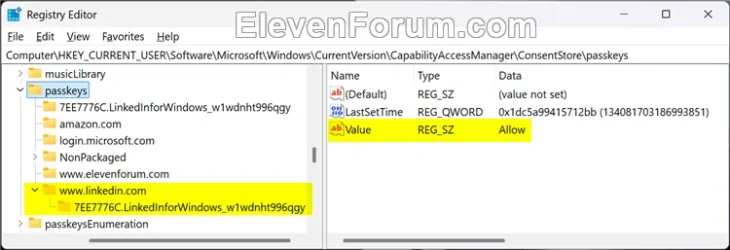
5 When finished, you can close Settings if you like.
That's it,
Shawn Brink
Related Tutorials
- Enable or Disable Passkey Autofill Access for Apps in Windows 11
- Enable or Disable Passkey Managers in Windows 11
- Create and Save Passkey for Website in Windows 11
- View Passkeys for Apps and Websites in Windows 11
- Delete Passkey for App or Website in Windows 11
- Add or Remove Passkey on Security Key for your Microsoft Account
- Add or Remove Passkey on Android Phone for your Microsoft Account
- Sign in to Website with Passkey in Windows 11
Last edited: